Add a schedule from a picture
Choose a screenshot, photo or PDF of the schedule, and we read the games for you to check.
Read what the video says
Start with the schedule you already have: a screenshot, a photo, or the league’s PDF.
Choose it on the Import page. An AI model reads it and sends back the rows it found. Now it’s your turn. Check every row: the date, the time, the venue. Nothing is saved until you say so.
The page names the league, the team and the level, so the new team comes filled in. Say who plays. Here, that’s Ava.
What changes lists everything new before you save. Save, and there’s the season: every game on the calendar, every day checked. Practices are the one thing a page rarely says.
Key them in on the Teams page, once, and they repeat every week.
Before you start: add your home address first. Every drive starts from home, so we can't read a schedule without it. Add your home address shows how.
Who can do this: an Editor, someone who can change the schedule, or the Owner, the one person in charge. A Viewer, someone who sees the schedule and changes only their own things, has no Import in their menu. If they open it, the page says who to ask.
Have the schedule ready: a screenshot of the club's page, a PDF, or a paper copy to take a photo of.
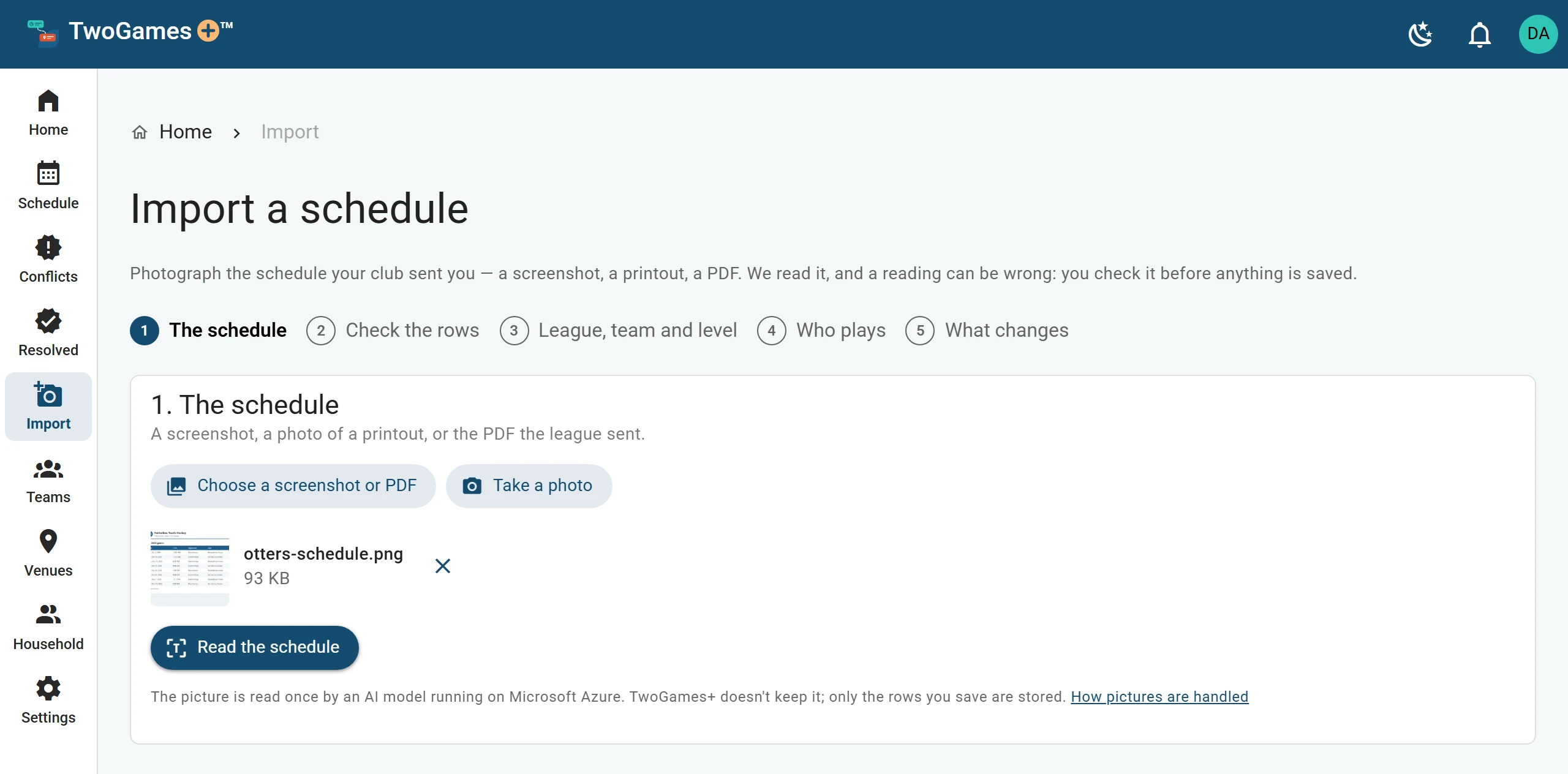
Open the menu (☰) and tap Import. On a tablet or computer, Import is on the left.
Tap Choose a screenshot or PDF and pick the schedule. Or tap Take a photo to use your camera.
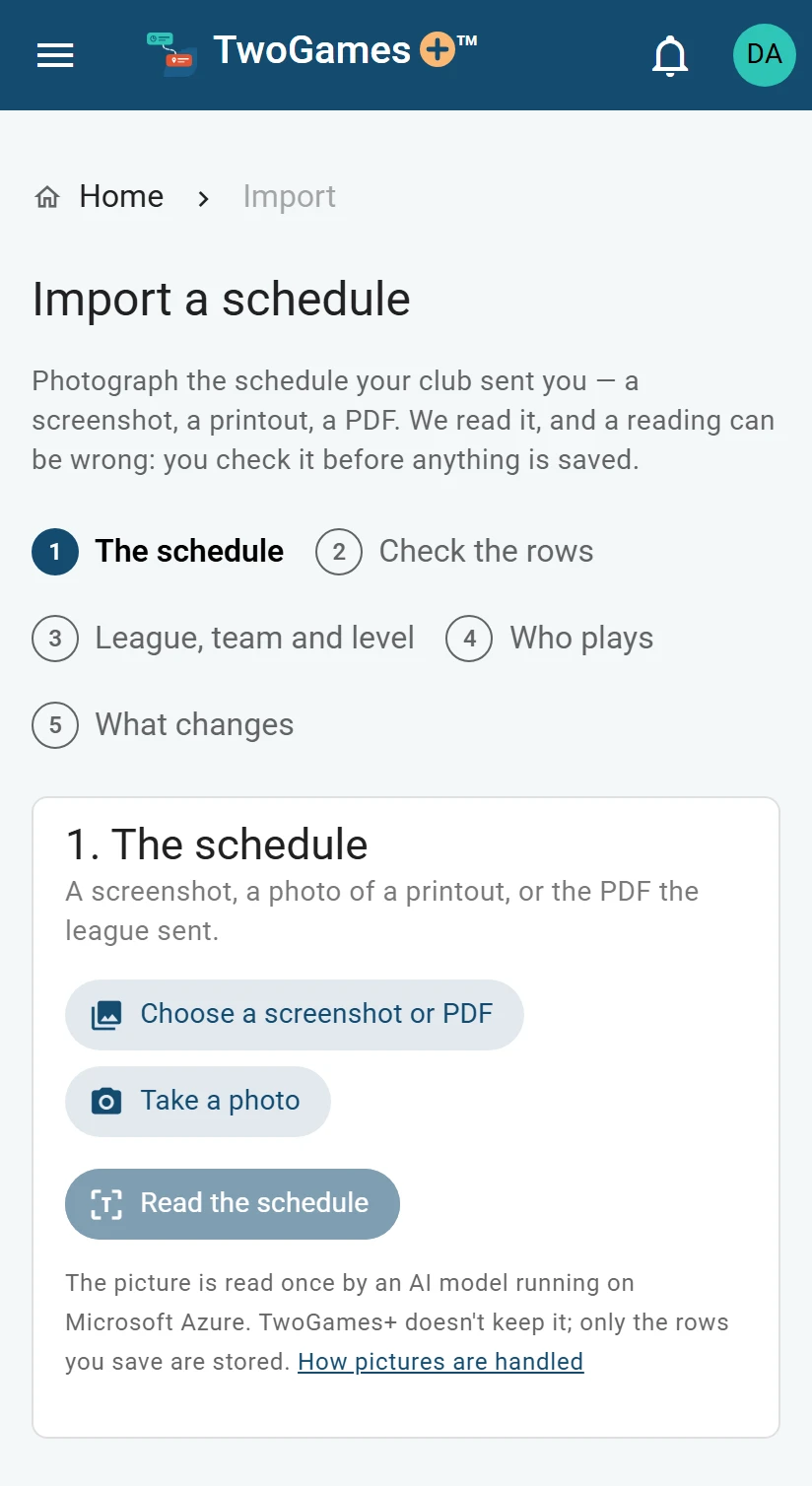
Choose a screenshot, or take a photo. Tap Read the schedule. Reading takes a little while, so keep the page open.
Check what we read, one step at a time. Check what we read, then save shows how.
On the last step, tap Save: the button says what it will save. Nothing is saved before this.
What you'll see
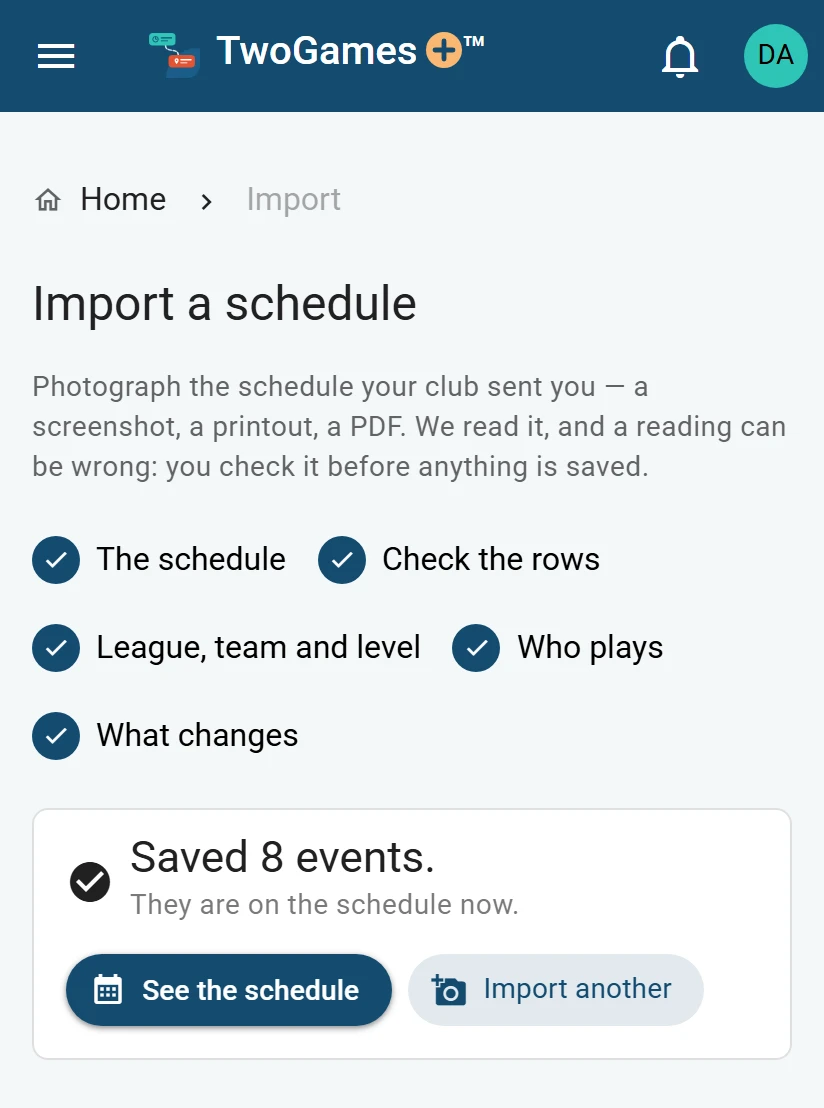
They are on the schedule now. Tap See the schedule to see your games and practices.
What happens to the picture
Our privacy notice says:
A picture of a schedule you import is read once by an AI model running on Microsoft Azure. We don't keep the picture, and it isn't used to train AI models.
Read more in our privacy notice
The AI sees the whole picture. If it shows something you'd rather not send, crop it out first.
Which files work
Screenshots, photos and PDFs work, up to 10 MB. iPhone photos saved as HEIC can't be read yet. Take a screenshot instead, or set the iPhone's camera to Most compatible in Settings › Camera › Formats.
Reads and your plan
Each schedule read is one picture or PDF we read for you. It counts only when we find games or practices on it.
Depends on your plan How many reads you get depends on your plan. Some plans give you reads to start with, and those don't come back. Monthly reads start again at midnight Eastern on the first of each month.
Depends on your plan Unlimited reads come with fair use.
Adding games and practices by hand on Teams never uses a read.
Tip: A clear picture of the schedule table itself reads best. Crop out the rest of the page first.
What to do next
- Check what we read, then saveNothing is saved until you check the rows, pick the team and tap Save.
- Add a newer version of a scheduleWhen the club changes its schedule, import it again and see what will change first.
- See which days don't workFind every coming day with a Conflict, and the ones that are Tight, in one place.
Still stuck?
Write to support@twogamesplus.com and a person will answer.