Add your home address
Cars leave from your household's home and come back to it, so add it before anything else.
On this page
Your home base is your shared home address. It's the same for your whole household: everyone who shares your schedule. The app shows every time in your home's time zone.
Before you start: only the Owner, the one person in charge, can do this. That's you, unless you joined someone else's schedule or handed yours to someone else. Anyone else sees only its town and state until the Owner confirms they live there.
Open the menu (☰), then tap Household. On a tablet or computer, it's on the left.
The Home base card is at the top. Tap the pencil on it.
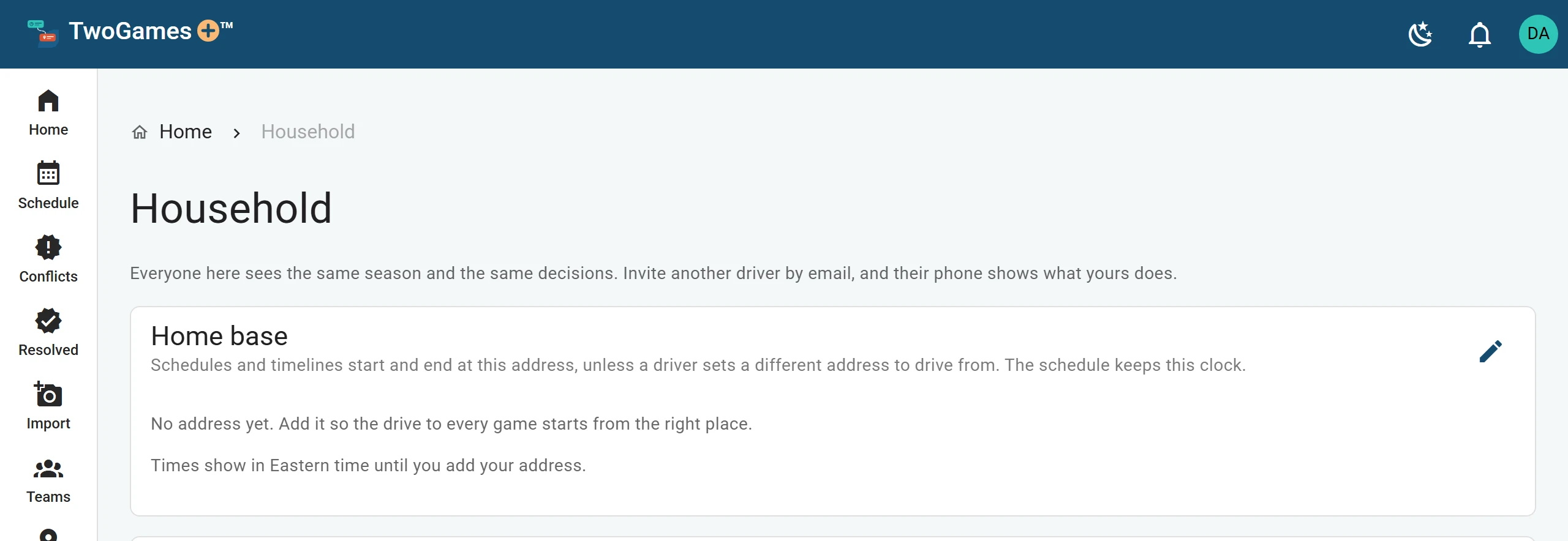
Your first sign-in makes a household named after you. Home base comes first, so add your address there. Start typing your Street address. Then pick your address from the list the map shows.
The map fills in your city, state and ZIP. If you picked the wrong one, tap Search again.
If you live in an apartment, type its number in Apt, suite or unit. The map never gets it.
The first time, I drive from here too is ticked. Untick it if you drive from somewhere else.
Tap Save.
What you'll see
Your address shows on the Home base card. Settings shows it too.
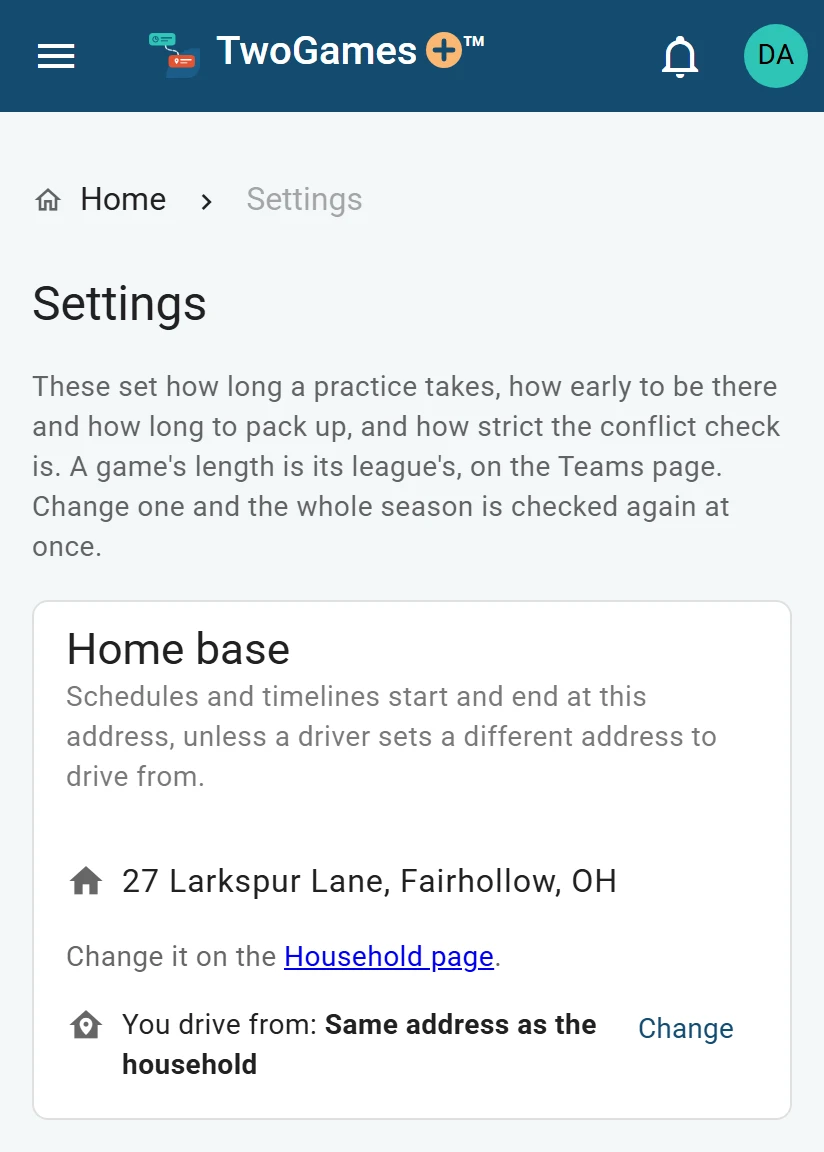
If you drive from somewhere else
Someone who drives from somewhere else adds their own address. Set where you drive from shows how.
Your time zone
The app finds your time zone from your address, so there's nothing to pick. The card says which one it found.
Need a different one? Tap Change under the address, then pick it from the list. It stays until you change it.
If the map can't find it
Sometimes the map has nothing for your street, or isn't answering. Then boxes for City, State and ZIP show up. Type them in: the state is two letters, like MA.
The map looks in the US only. For a home in another country, type the city, state and ZIP the same way.
Why it comes first
We read a schedule for you only once the map has found your home. The same goes for adding a second team. Try before then, and the app says Add your home address on the Household page first.
The card may say This address hasn't been found on the map yet. Or it may say The map couldn't find this address. Either way, check the street and city, then save again.
Still not found? Email us at support@twogamesplus.com, and we'll help.
What to do next
- Set where you drive fromYour drives start and end where you drive from: your household's home, or an address of your own.
- Add your kids and other playersAdd each player who doesn't sign in, like your kids; a first name or a nickname is enough.
- Add a teamAdd each team with its league, sport and level, and who in your household plays on it.
Still stuck?
Write to support@twogamesplus.com and a person will answer.