Resolved days, and changing your mind
See the days you fixed and how, and undo a fix until the day is done.
A resolved day is a day you fixed. It had a conflict: the drive doesn't fit, or two things overlap. You made a change, and now no conflict is left.
What the page shows
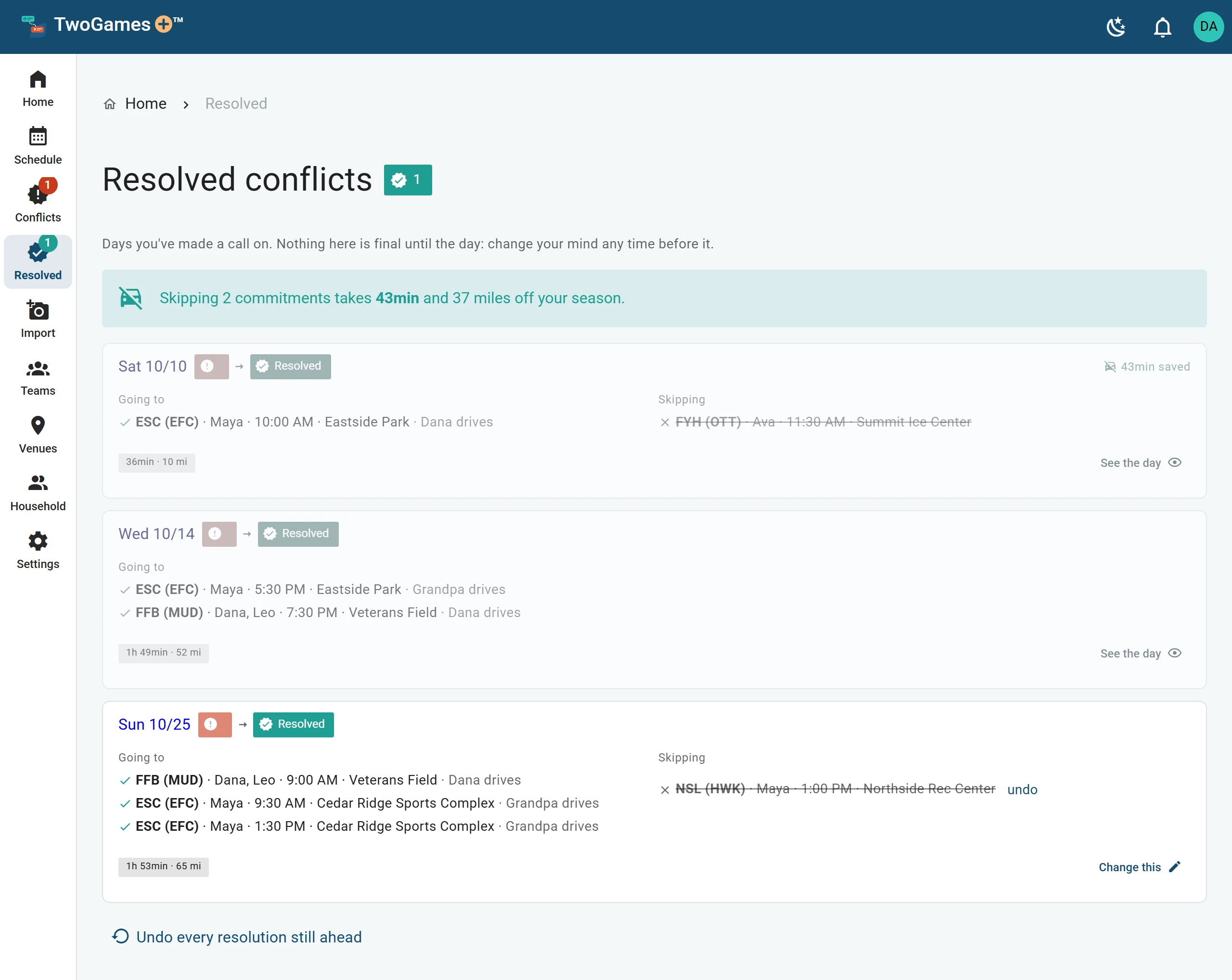
Tap Resolved at the bottom. On a tablet or computer, it's on the left. Each day shows what you're Going to, what you're Skipping, and who drives.
On Home, the Conflicts resolved tile counts the fixed days still ahead.
When a day counts as resolved
A day counts only if your change leaves no conflict at all. You can skip a game on a day that was fine, to take it off everyone's day. That's not a fix, so the day isn't listed here.
If a later change breaks the day again, it goes back to Conflicts.
Changing your mind
Who can do this: an Editor, someone who can change the schedule, or the Owner, the one person in charge. A Viewer, someone who sees the schedule and changes only their own things, reads the same page, with nothing to undo.
Nothing is final until the day is done. Tap undo beside a skip, or Change this to open the day and change it there. To undo every fix still ahead, tap Undo every resolution at the bottom.
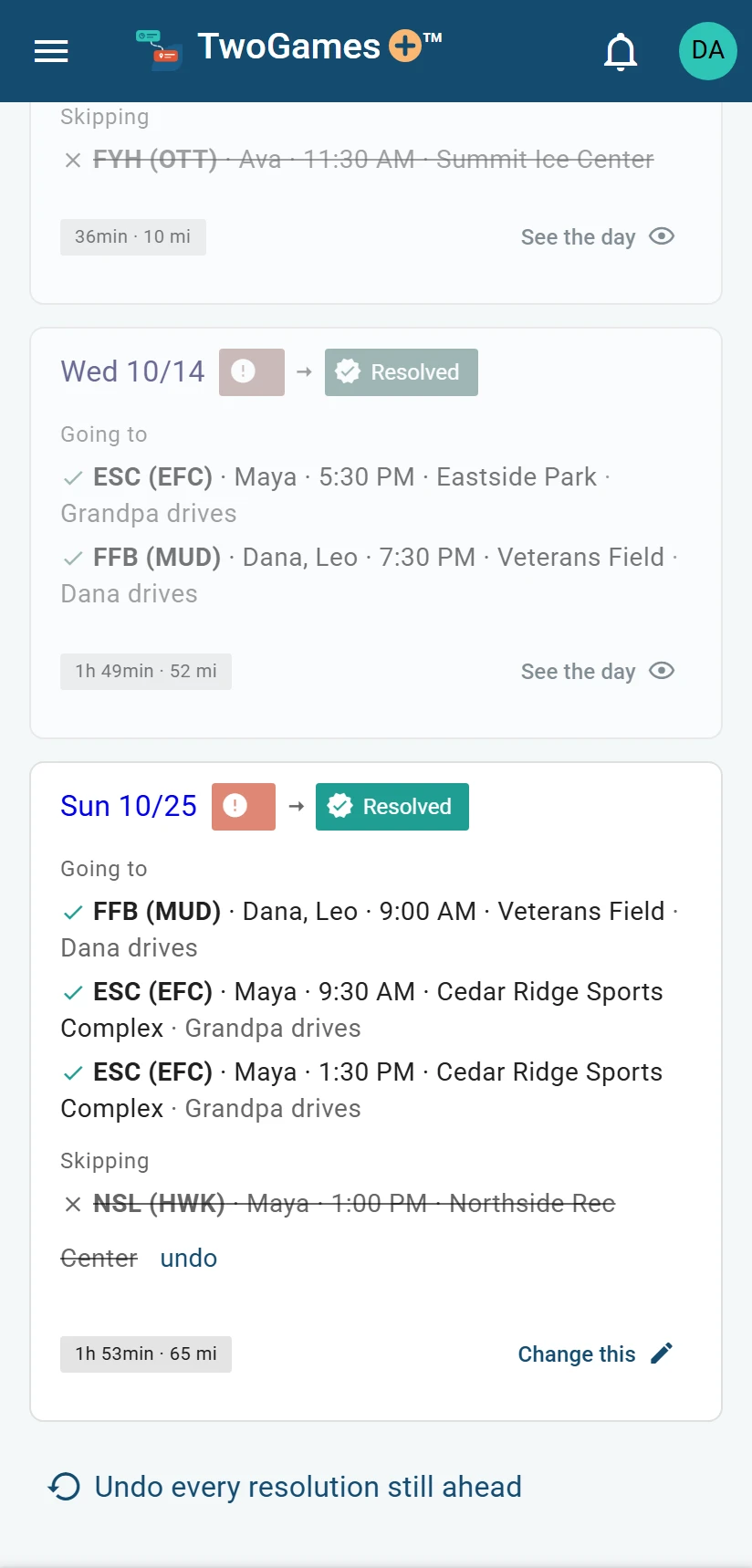
60 minutes after a day's last drive or game ends, it becomes the record: a day that's over and can't be changed. It stays on the list, greyed out, with See the day.
Once a day on the list is part of the record, the button at the bottom says Undo every resolution still ahead.
Did an undo not stick? See It says a change couldn't be saved. Or write to support@twogamesplus.com, and a person will help.
What to do next
- Fix a day that doesn't workHand one event to another driver, or skip one, and we check the day again at once.
- Skip a game or practiceSkip anything you won't go to, and the rest of the day is checked again.
- See which days don't workFind every coming day with a Conflict, and the ones that are Tight, in one place.
Still stuck?
Write to support@twogamesplus.com and a person will answer.