Find one player's games, or your own drives
Use the filters on the Schedule to see only the days you care about.
The filters sit at the top of the Schedule. They help most when your season is busy.
Tap Schedule at the bottom. On a tablet or computer, Schedule is on the left.
Use any of the filters below, one at a time or together.
The filters
- A rink, field or club: type its name in Venue or league. Then tap it in the list.
- Some teams: tap Teams and tick one or more. Then tap Done.
- Depends on your plan One person's days: tap Player and pick them.
- Your drives: tap Driver, then Me (with your name). Or pick No driver picked for what nobody has taken yet.
- Only games, or only practices: tap Games & practices, then Games or Practices.
- The days that need a decision: tap Conflicts. When you skip something, you take it off everyone's day, and Skipped shows those days.
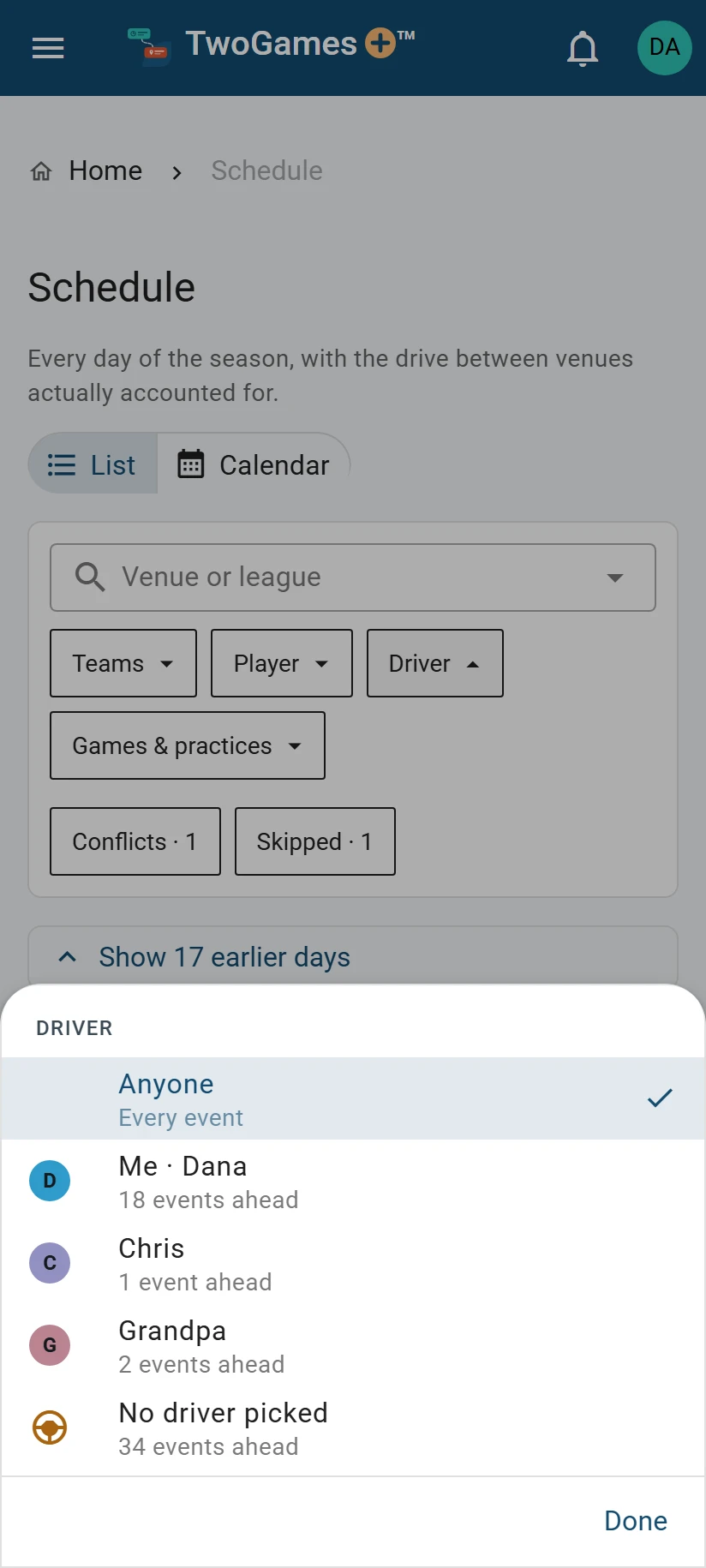
What you'll see
The list keeps only the days that match. The calendar keeps every day but dims the rest, and counts the matches, with arrows to the next one. Tap Clear to see everything again.
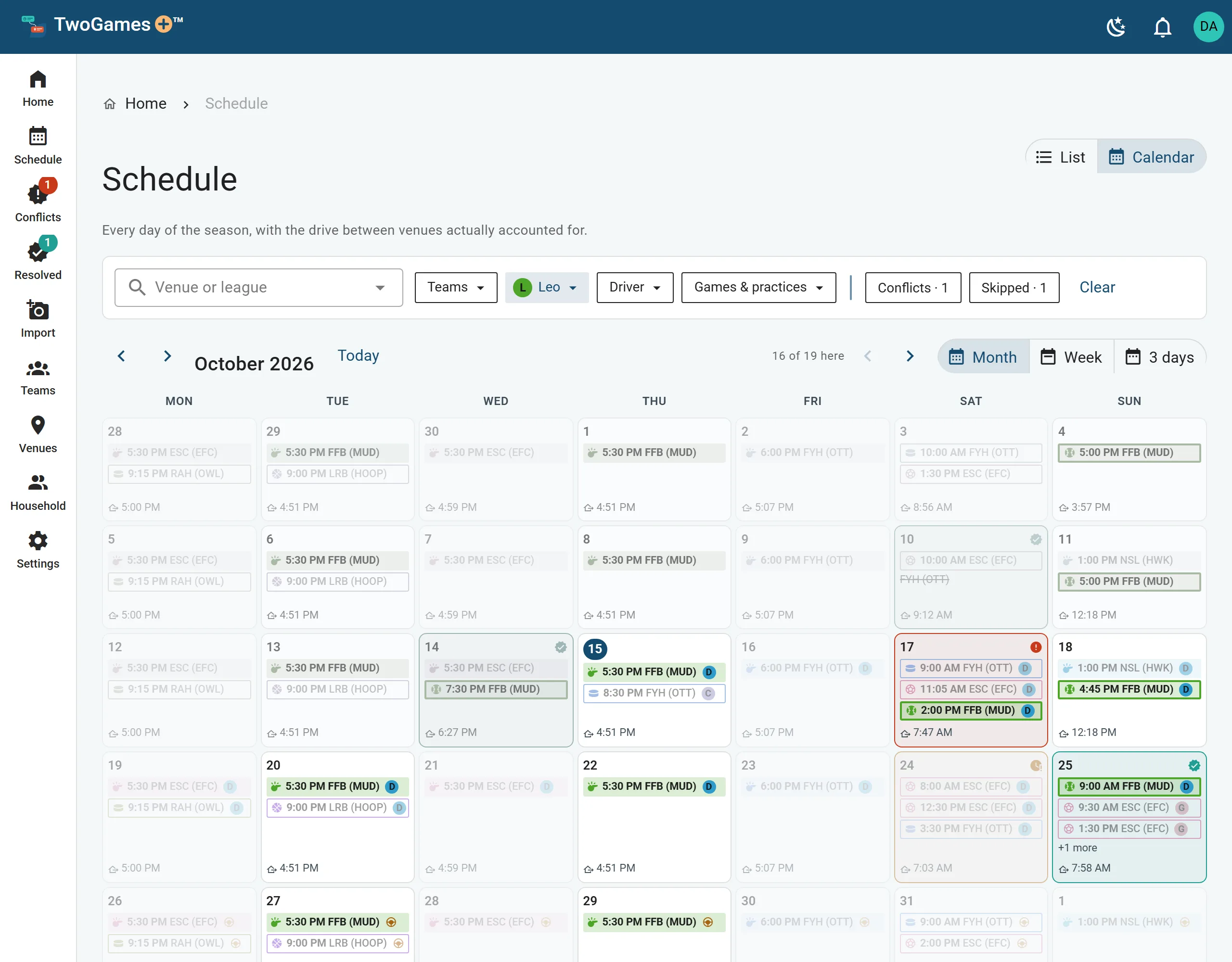
Depends on your plan Player shows when two or more people play on your teams. A player is anyone on one of your teams, and how many you can add depends on your plan.
Driver shows when two or more adults sign in.
When you open the Schedule again from the menu or the bottom bar, every filter is off.
Tip: Want all your drives for the season? Pick Driver, then Me, and switch to the calendar.
What to do next
- See your season as a list or calendarSwitch between a list of days and a calendar by month, week or three days.
- Let someone else drive a gameHand over a game or practice to another adult, and we check each car on its own.
- See which days don't workFind every coming day with a Conflict, and the ones that are Tight, in one place.
Still stuck?
Write to support@twogamesplus.com and a person will answer.