I can't add a player, team or person
What the plan messages mean, and what you can do about each one.
On this page
Your household is everyone who shares your schedule, and it's on one plan. Each plan has room for a set number of players: anyone on one of your teams. It also sets how many teams and people who sign in you can have.
Only the Owner, the one person in charge, can change the plan. Find what you see below.
No room for another player or team
What you see
In the team window, a note names your plan and how many it has. Add team or Save stays greyed out.
Why it happens
Depends on your plan How many players and teams you can have depends on your plan. The note names the next plan up, if there is one.
What to do
Tap Cancel to close the team window.
To free a team, tap the three dots (⋮) by a team you no longer need, then Remove the team. Its games and practices go with it, and you can't undo this.
To free a player, tap ⋮ by their team, then Change the team.
Under Who plays on it, tap their name to take them off. Then tap Save.
A player stops counting only when they are on no team at all. A team needs someone on it, so if they're the only one, remove the team instead.
Or ask the Owner to choose a plan with more. Choose, change or cancel your plan shows how.
You can't invite anyone else
What you see
Under Invite someone, a line says how many people who sign in your plan has, counting invitations still waiting. Send is greyed out.
Why it happens
Depends on your plan How many people can sign in depends on your plan. Invitations still waiting count too, and so does the place of someone who left in their first 7 days, until the day the line says. Everyone who drives signs in, so each one takes a place.
What to do
Tap Withdraw on an invitation you don't need any more.
Someone who only plays, like a child, can be an add-on instead: someone you add who doesn't sign in. Add-ons, added under Household Members, never count here.
Or the Owner can take out someone who no longer needs to sign in. On Household, tap ⋮ next to their name, then Remove from household.
In their first 7 days, it's greyed out, with the day it works under it.
Or the Owner can choose a plan with more. The line names one, if there is one.
After moving to a smaller plan
What you see
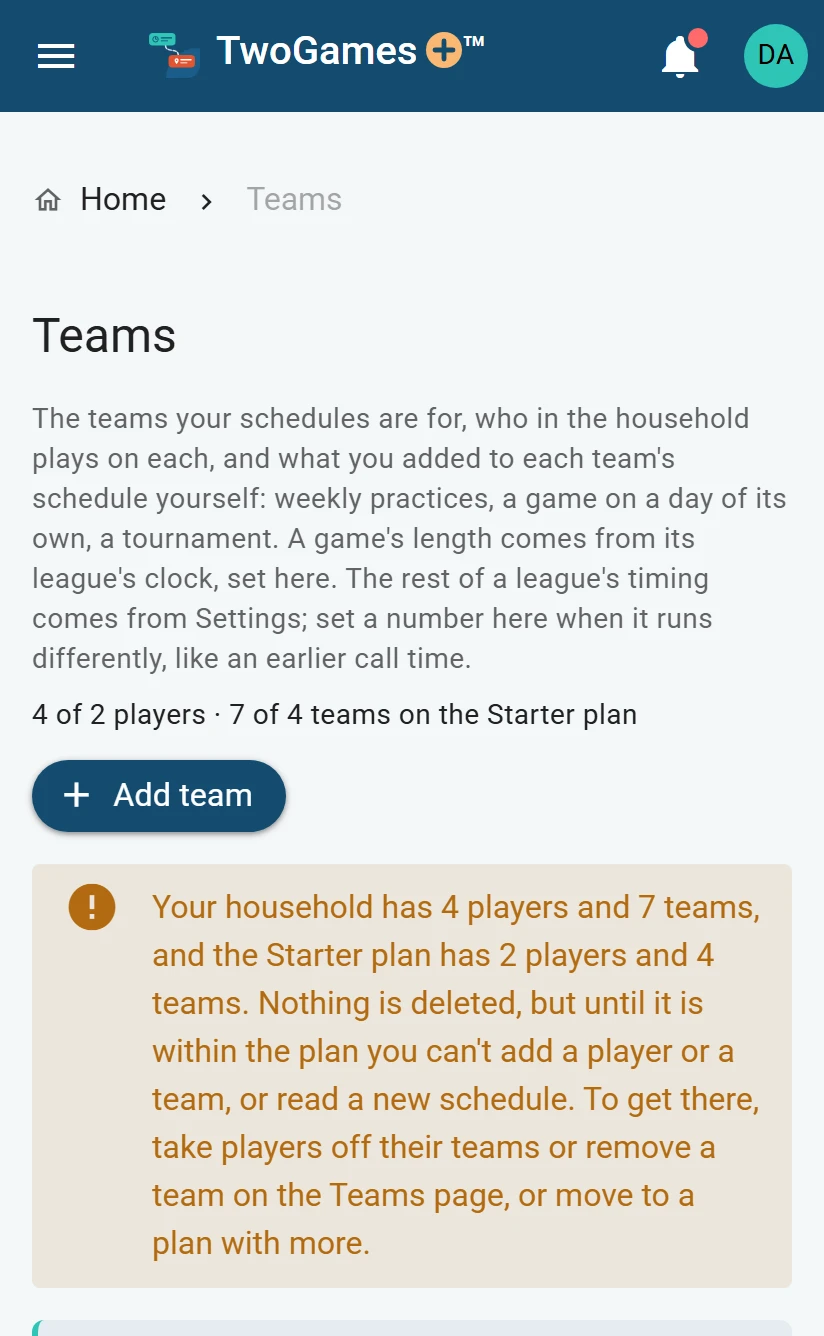
A note on Home, Teams and Import starts Your household has. It says Nothing is deleted.
Why it happens
Depends on your plan You have more players or teams than your plan allows. You keep everything. Until you're within the plan, you can't add a player or a team, or read a new schedule.
What to do
Does the note say to ask an Editor, someone who can change the schedule, or the Owner? Then that part is theirs to do.
Open the menu (☰), then tap Teams.
Take a player off every team they're on, or remove a team you no longer need.
The note goes away once you are within your plan.
Or the Owner can move to a plan with more.
It asks for your home address
What you see
A note says Add your home address on the Household page first. Or it starts Another household at your home address uses TwoGames+.
Why it happens
A plan counts one home, so we need to know where yours is. Households at the same address share one plan.
What to do
Add your home address. Add your home address shows how.
If it says another household at your address uses TwoGames+, ask them to invite you. Then you share one schedule.
A team marked Player needed has nobody on it yet. Every team needs someone on it. Tap Choose who plays under the team, tap who plays, then tap Save.
Depends on your plan Out of schedule reads, one picture or PDF we read for you? See A schedule didn't read well.
What to do next
- Plans and what they includeEvery plan checks every day, and bigger plans let you add more and give a few extras.
- Choose, change or cancel your planThe Owner picks a plan on the Household page, and changes or cancels it there too.
- Change, merge or remove a team or practiceRename a team, join two copies of one team, or remove what you no longer need.
Still stuck?
Write to support@twogamesplus.com and a person will answer.