See which days don't work
Find every coming day with a Conflict, and the ones that are Tight, in one place.
A day with a Conflict can't be driven as planned: the drive doesn't fit, or two things overlap. A Tight day isn't a conflict. The gap covers the drive, but with less than 45 minutes to spare.
Tap Conflicts at the bottom of the screen. On a tablet or computer, Conflicts is on the left.
Look under Ahead of you. Each day says in one line why it doesn't work.
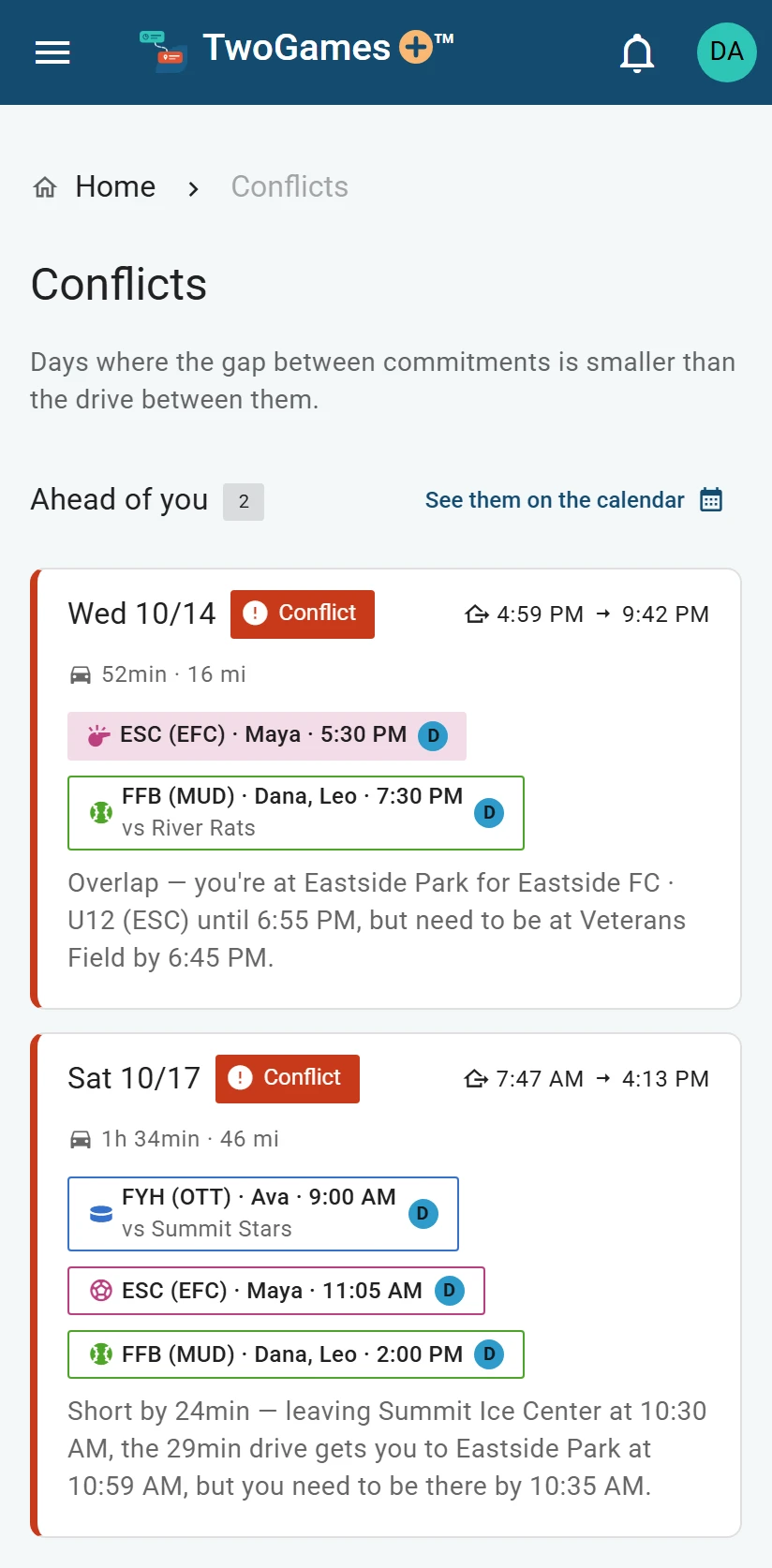
Conflicts lists every day ahead that needs a decision. Look under Tight for days with little time to spare.
Tap a day to open it. Then tap Fix it to see your choices.
A Viewer, someone who sees the schedule and changes only their own things, sees who to ask instead.
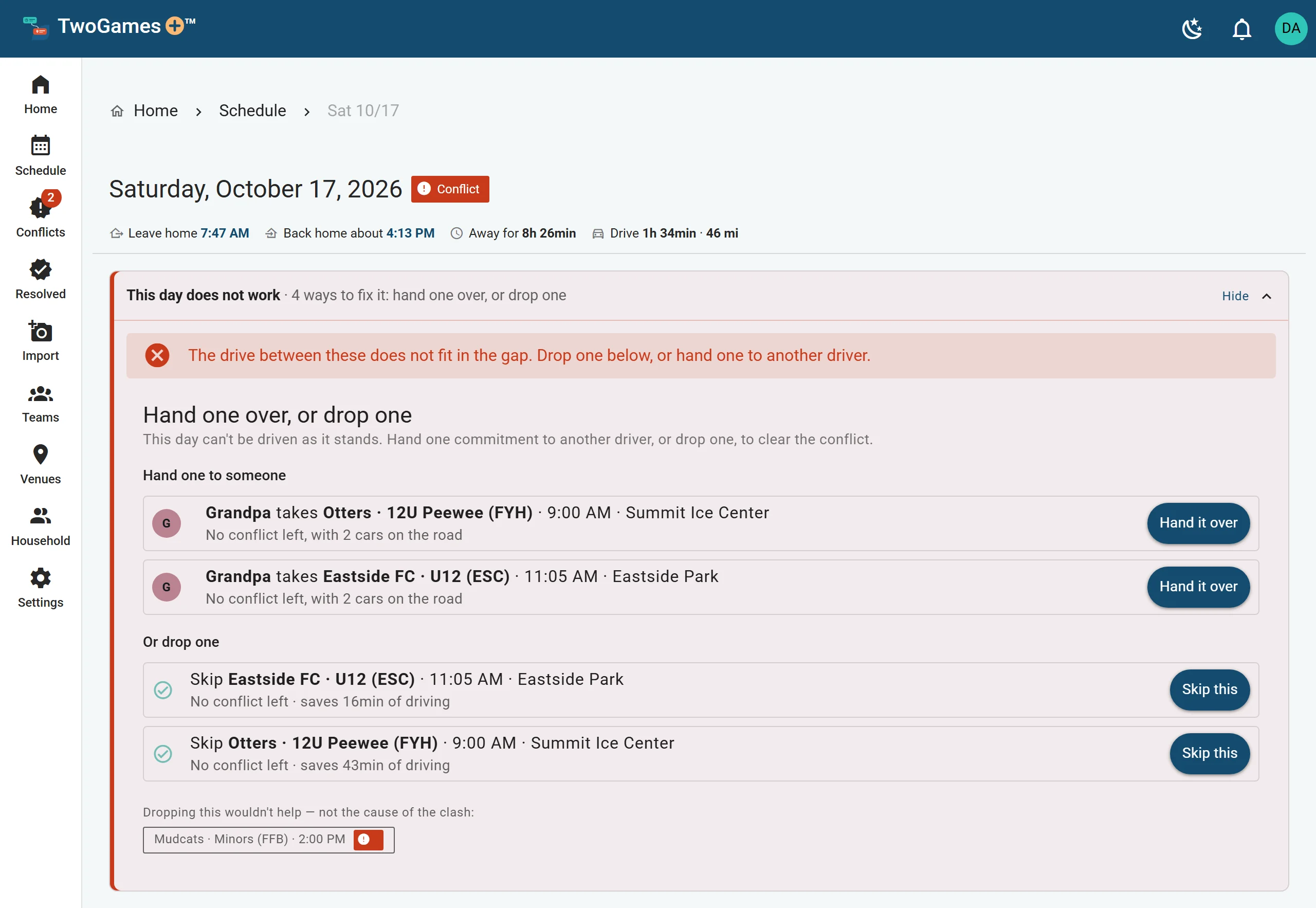
Fix it lists the ways to make the day work.
What you'll see
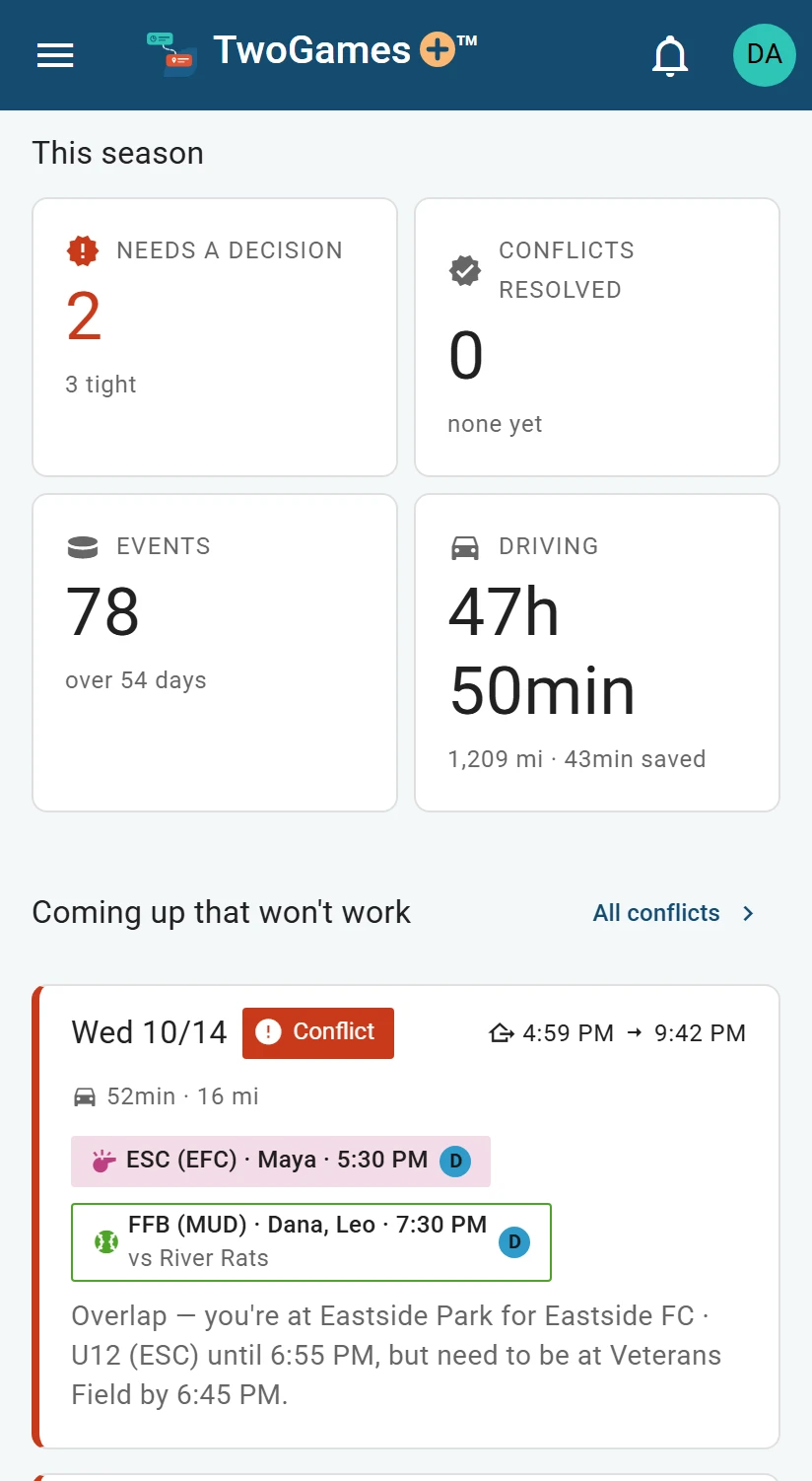
The number on Conflicts counts the days ahead that need a decision. When there are none, the page says Nothing needs a decision.
To see where they fall in your season, tap See them on the calendar.
Home shows the same count under Needs a decision, and lists the next few under Coming up that won't work.
A conflict day that has gone by moves down to Already been and gone. It no longer counts.
A day can also be Tight because a place isn't on the map yet. Here's how to fix that.
Tip: A Tight day isn’t a conflict, but it’s worth a look before you set off.
What to do next
- Fix a day that doesn't workHand one event to another driver, or skip one, and we check the day again at once.
- What Fits, Tight and Conflict meanEvery day gets one word that says whether one driver can make it all on time.
- Find one player's games, or your own drivesUse the filters on the Schedule to see only the days you care about.
Still stuck?
Write to support@twogamesplus.com and a person will answer.