Invite your partner or another driver
Share one schedule, so everyone you invite sees the same season on their own phone.
Read what the video says
Share the driving. On the Household page, invite the other driver by email.
They get a link that works once and expires after a week. They sign in with it and join.
Then they say where they drive from: your address, or their own.
Now you both see the same season, and the decisions either of you makes. Thursday was Tight. Give Ava’s game to Chris.
Two cars, and each one fits.
Your household is everyone who shares your schedule. Each person you invite signs in on their own phone and sees what you see.
Before you start: only the Owner, the one person in charge, can invite. If that isn't you, the page says who the Owner is.
Open the menu (☰), then tap Household. On a tablet or computer, it's on the left.
Find Invite someone at the foot of the household's card.
Type their email in Their email address.
Tap Send.
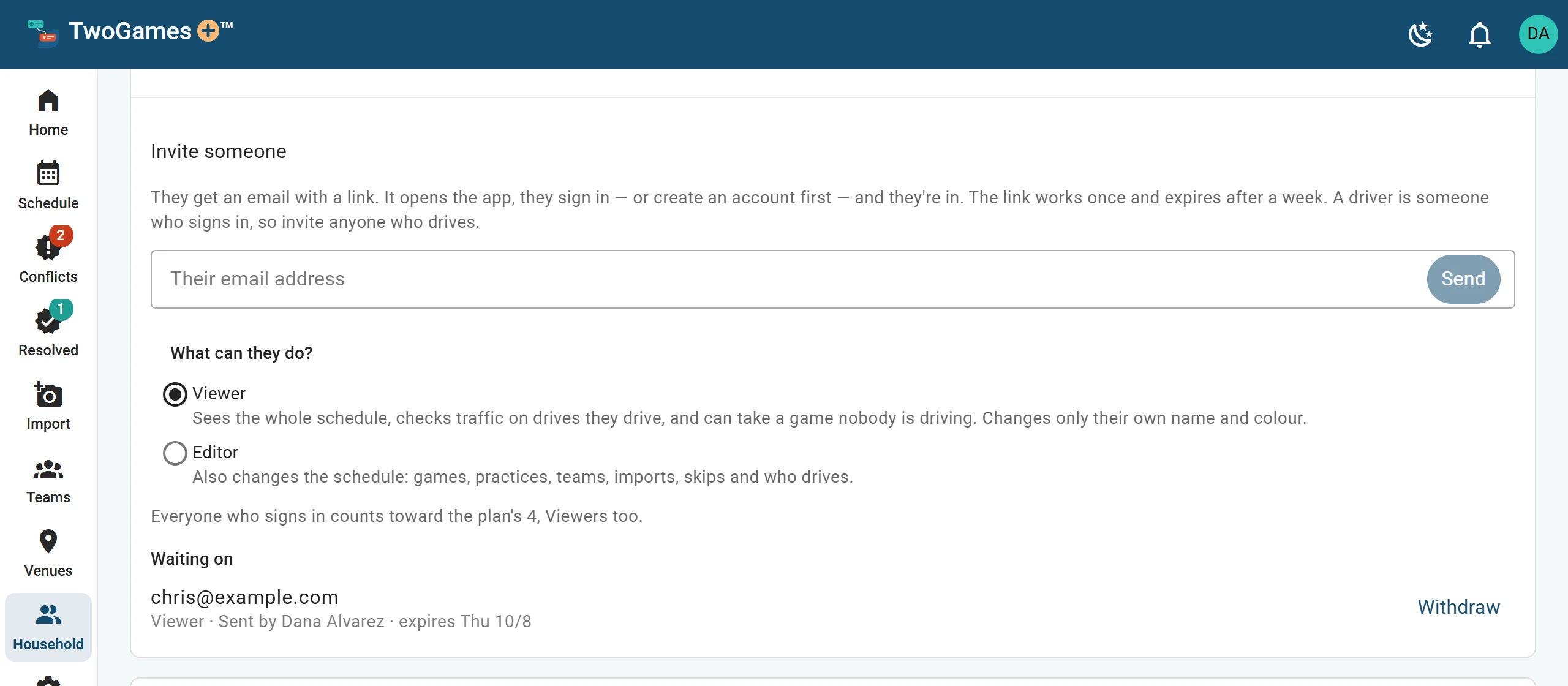
The Owner invites by email; the link works once. Read the note, then tap Send invitation.
What you'll see
Their email shows under Waiting on, with their role and the day the link expires. We email them a link. It works once, for 7 days.
They open the link, sign in and tap Join household. Join a household you were invited to shows their side.
Once they join, they say where they drive from. Until then, nobody can hand them a drive. Set where you drive from shows how.
Changed your mind? Tap Withdraw next to their email.
Their first days
Once they join, you can't take them out for 7 days, counted on your household's clock. They can leave any time. If they leave in those days, their place still counts toward your plan until then.
Viewer or Editor?
Pick Viewer for someone who only needs to look, like a grandparent.
Pick Editor for someone who runs the schedule with you, like the other parent. You can change it later. Who can do what lists everything each one can do.
How many people can sign in
Depends on your plan How many people can sign in depends on your plan. Everyone who signs in counts, Viewers too, and so do invitations still waiting.
When your plan is full, the card says so, and Send is greyed out. If someone left in their first days, it says when their place frees up.
Everyone who drives signs in, so each of them counts. Someone who only plays, like your child, can be an add-on instead: someone you add who doesn't sign in. Here's how.
Did you add them as an add-on before? Once they join, give them the add-on's teams and drives, then remove the add-on.
Tip: No email? Ask them to check their spam folder, or tap Withdraw and send a new one.
What to do next
- Join a household you were invited toOpen the link in your invitation, sign in, and tap Join household.
- Owner, Editor and Viewer: who can do whatThe Owner runs the household, Editors change the schedule, and Viewers see it and take a game nobody drives.
- Let someone else drive a gameHand over a game or practice to another adult, and we check each car on its own.
Still stuck?
Write to support@twogamesplus.com and a person will answer.