Sign in with your email
Type your email and the code we send you, with no password to remember.
What you'll need
- An email address you can open on your phone.
- To be an adult. Asking for a code agrees to our terms.
Open app.twogamesplus.com in your phone's web browser.
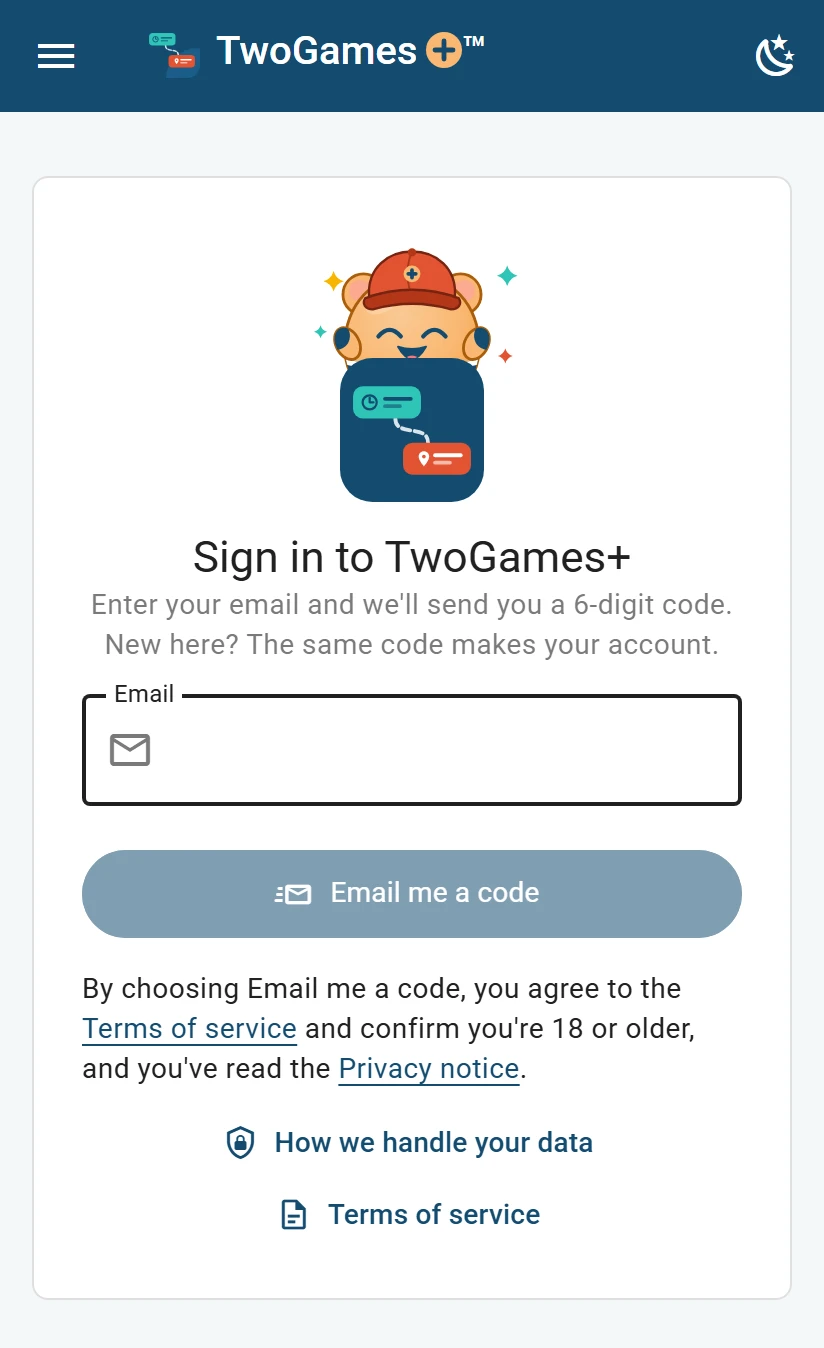
Sign in with your email: we send a code, and there's no password. Type your email in the Email box.
Tap Email me a code. If a box says Verify you are human, tick it.
Leave this page open, and open your email. The code is in the subject line of our email.
Come back to this page, and type the code in the 6-digit code box. You're signed in as soon as the last digit is in.
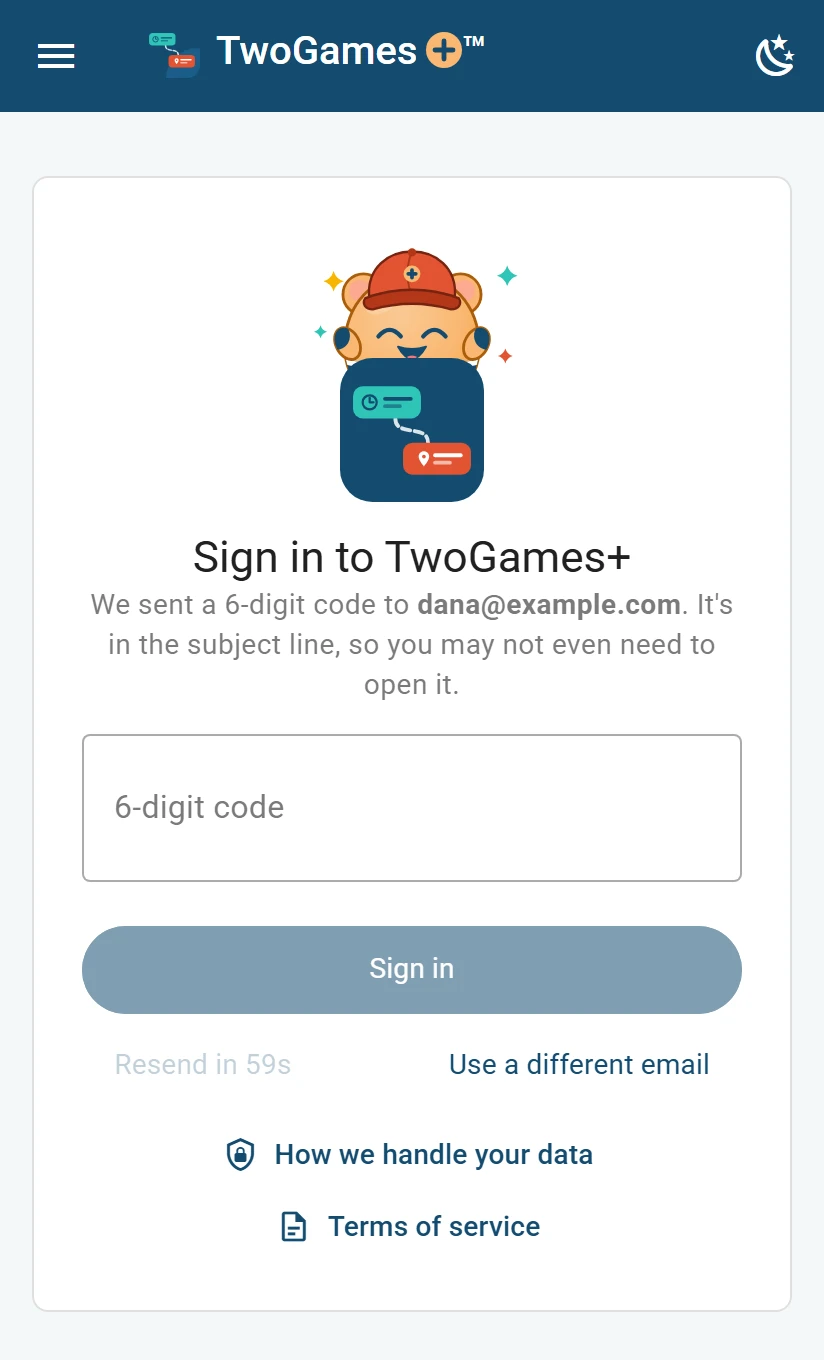
The page that asks for your 6-digit code. The first time, you may see What should we call you? Type your name, then tap Continue.
Most people never see that box. Cloudflare shows it only when it is unsure that a person, not a program, is asking. After you tick it, wait for Success!
In our privacy notice's words: When you ask for a sign-in code, Cloudflare first checks that a person, not a program, is asking. It sees your IP address and details about your browser.
Read more in our privacy notice
You can also tap Sign me in in the email. Then tap Sign me in again on the page that opens.
If the page shows Continue with Google, you can use that instead of a code.
What you'll see
You're on Home. The first time, we make your household, everyone who shares your schedule. It's named after you, and you're its Owner, the one person in charge.
Your season is empty at first. Home shows Let's get your season in: your home address first, then a picture of your schedule. Tap Show me around there for a short tour.
Were you invited? Open the link in your invitation email instead, to join that household. See Join a household.
No code? See The sign-in code didn't come or won't work.
Signing out
You stay signed in on that browser until you sign out. To sign out, tap your initials at the top right. Then tap Sign out.
You go straight back to the sign-in page, ready for whoever uses this phone next.
Tip: To put TwoGames+ on an iPhone home screen, tap Share in Safari, then Add to Home Screen. On Android, tap the menu (⋮) in Chrome, then Add to Home screen.
What to do next
Still stuck?
Write to support@twogamesplus.com and a person will answer.