Add an activity, like piano lessons
Add lessons, classes or clubs, like piano or karate, with no league or team to set up.
Before you start: a team that plays games against other teams is added as a team instead. Add a team shows how.
Who can do this: an Editor, someone who can change the schedule, or the Owner, the one person in charge. A Viewer, someone who sees the schedule and changes only their own things, can't do this. The app tells them who to ask.
Tap Schedule at the bottom, then Add Event at the top. Tap A new activity.
Type the Activity name, like Piano lessons, and pick a colour.
Under Who goes, tap each person who goes. Then tap Next.
Pick Every week or One day. For every week, tap each day it happens, then set the First day and Last day.
Set the time it Starts and Ends.
Under Where, pick the venue: a rink, field, court or gym, or a studio. Or pick A new venue.
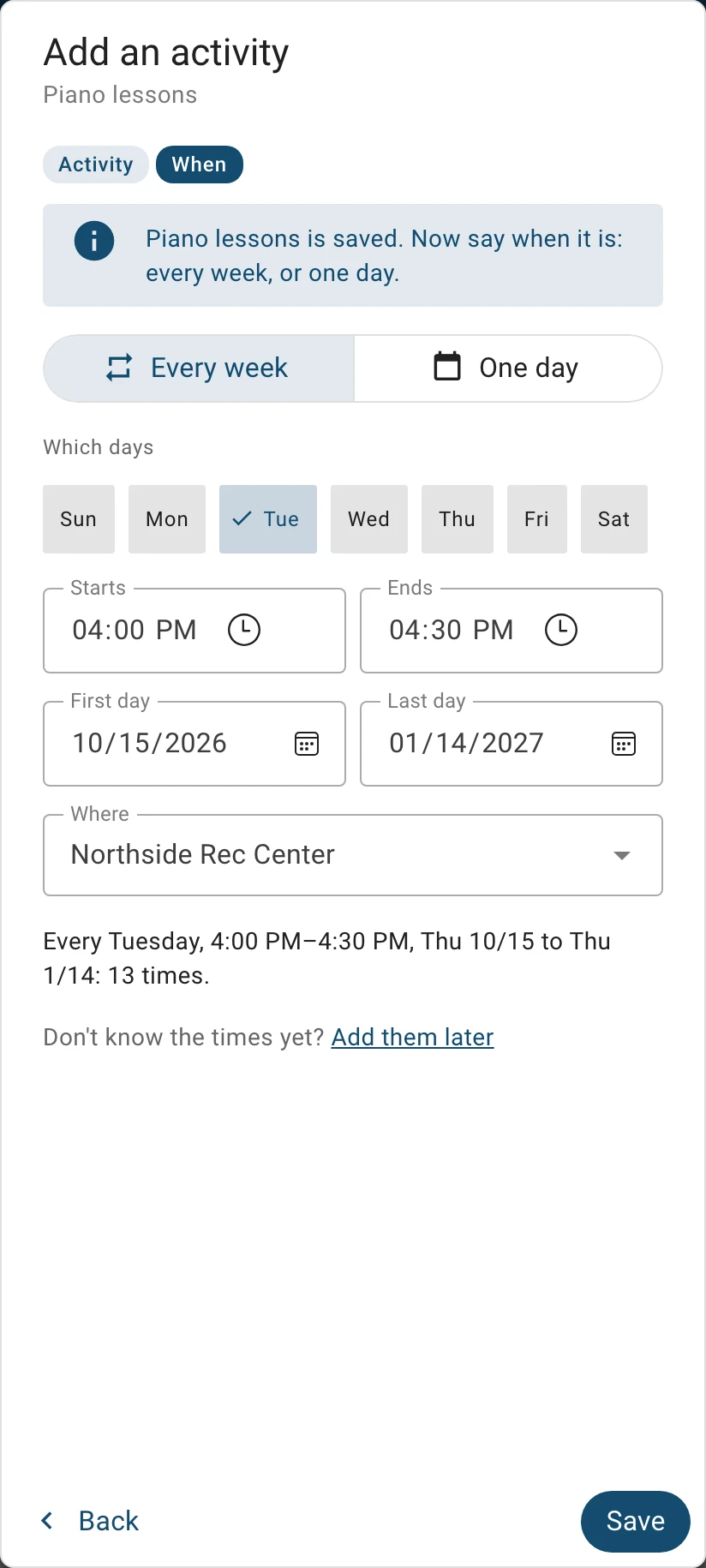
When it is: the days, the time and where. Or add them later. Tap Save, or Add them later if you don't know the times yet.
You can also start on Teams: tap Add activity, beside Add team.
What you'll see
Your activity shows on Teams, under Activities. Every date is on your schedule too.
Change it or remove it
- To add another time, like a recital, tap Add Event on its card.
- To change or remove one time, tap the pencil or the bin beside it.
- To rename it, or change who goes, tap ⋮ on its card, then Change the activity.
- Short label, in the same window, is the few letters the calendar shows for it. It can't be one that another team or activity already uses.
- To remove it with all its times, tap ⋮, then Remove the activity. Nobody who goes to it is removed.
- Activity Settings on its card sets how long it usually runs, and how early to be there.
What counts toward your plan
Depends on your plan An activity counts as one of your plan's teams.
Depends on your plan Each person who goes to one counts as a player: anyone on one of your teams or activities. The terms say: A player is anyone on one of your teams, or who goes to one of your activities, adult or child, including a coach on the team they coach. People who are on no team or activity, such as someone who only drives, never count.
Read more in our terms
What to do next
- Add a weekly practice by handAdd a practice that happens at the same time every week, for the whole season.
- Change, merge or remove a team or practiceRename a team, join two copies of one team, or remove what you no longer need.
- Add a teamAdd each team with its league, sport and level, and who in your household plays on it.
Still stuck?
Write to support@twogamesplus.com and a person will answer.