Today's plan doesn't follow my phone
What to check when location is on, but today's plan doesn't show where you are.
On this page
With location on, today's plan shows where you are, marked “device location”. Only you see it. The rest of your household, everyone who shares your schedule, always sees the day's times as planned.
Find what you see below, and follow its steps.
Location is blocked
What you see
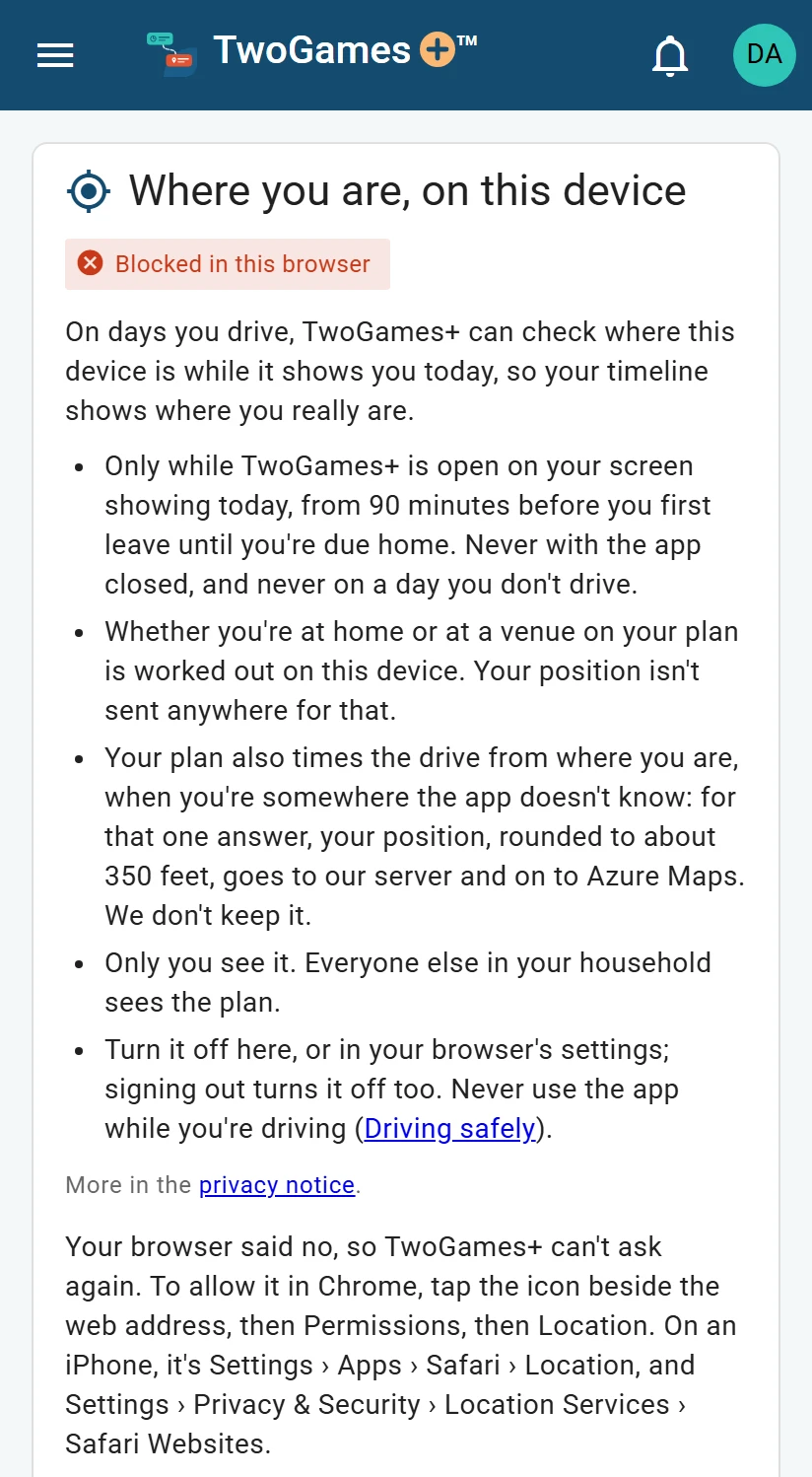
In Settings, the card says Blocked in this browser. Today's plan may also say Location is blocked in this browser, so your times are from the plan.
Why it happens
Your browser said no when we asked. We can't ask again, so you allow it in your browser's settings.
What to do
On Android, in Chrome, tap the icon beside the web address. Then tap Permissions, then Location, and allow it.
On an iPhone with Safari, open the Settings app. Go to Apps › Safari › Location, and allow it.
Also on an iPhone with Safari, allow it in Settings › Privacy & Security › Location Services › Safari Websites.
On an iPhone with Chrome, open the Settings app. Go to Apps › Chrome › Location, and allow it.
Close TwoGames+ and open it again. If Settings says Off, tap Turn on.
It says your phone can't tell where it is
What you see
Today's plan says: This phone can't tell where it is well enough right now, so your times are from the plan.
Why it happens
Your phone's location isn't clear enough right now, or it stopped answering. This often happens inside a building, or where the signal is weak.
What to do
Step outside, or wait a few minutes.
Check that location is on in your phone's own settings.
Meanwhile, go by today's plan. Its times are the same as before you turned location on.
It says your phone can't tell when you're at home
What you see
Today's plan says Your phone can't tell yet when you're at home. The line under it says why.
Why it happens
Your phone needs the map position of the home you drive from. It gets it once the map finds that address. For the household's address, the Owner, the one person in charge, first confirms you live there.
What to do
Chose Same address as the household? Ask the Owner to confirm it on Household.
Drive from your own address? On Household, tap ⋮ by your name, then Where you drive from, and fix the address there.
Meanwhile, go by today's plan. At a rink or field, your phone still knows where you are.
Nothing from my phone shows
What you see
Settings says On for this device, but today's plan shows nothing marked “device location”.
Why it happens
It works only on a day you drive, for your own car, while today is on your screen. At other times, you see the day's times as planned.
What to do
Check that you've said where you drive from: until you do, no car is yours. Set where you drive from shows how.
Look for a small line under a step that starts “Device location:”. It means you're where today's plan expects you.
If a game says Needs a driver, nobody has said they'll drive it yet: tap it, then tap your name. A Viewer, someone who sees the schedule and changes only their own things, taps I'll take it.
Keep TwoGames+ open on today: Home, or today's page in Schedule.
Check the time. It starts 90 minutes before you first leave, and stops when you're due home.
If we can't time your first drive yet, it starts that long before you're due at your first place.
Settings has no location card
What you see
Settings has no Where you are, on this device.
Why it happens
This browser can't share your location with TwoGames+.
What to do
Open TwoGames+ in Chrome or Safari instead.
What to do next
Still stuck?
Write to support@twogamesplus.com and a person will answer.