See today's plan and when to leave
Home shows when to leave, each drive and each game, and keeps up with the clock.
Read what the video says
The time to leave home works backwards. Ava’s practice starts at six. Hockey wants her there 25 minutes early, so the target is 5:35, not six. Then the drive from home, measured for the hour you’ll drive it: 28 minutes. That gives you 5:07.
Change how early the sport needs you in Settings, and the time to leave changes with it. 30 minutes early, and it’s 5:02.
You can also set it for one event, like an early call, or for a whole league.
With location on, today’s timeline follows your phone. Still at home past the time to leave? It says so. Plan before you go. Never use the app while you drive.
On a day with games or practices, Home shows the whole day under On today. It starts with Leave home: when to set off from home, the one you drive from.
Tap Home at the bottom. On a tablet or computer, Home is on the left.
Under On today, find Leave home. Beside it are Back home and Away for.
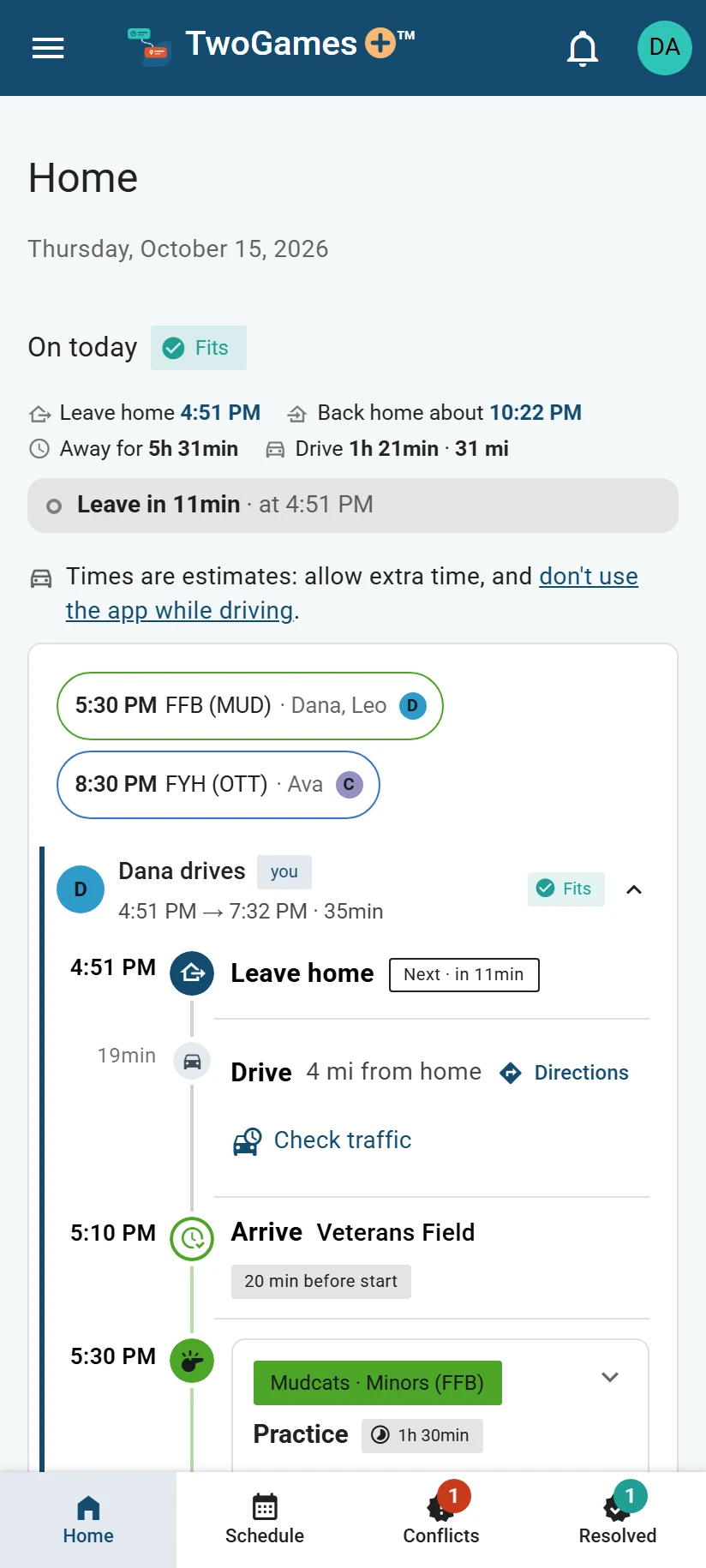
On today: when to leave, each drive and each event. Scroll down through the day. Each drive, game and practice has its own row, with its time on the left.
Before you set off, tap Directions on a drive. It opens the drive in your maps app.
What you'll see
A line near the top says where the day stands, like “Leave in …” or “On the way to …”. Finished steps turn grey. The step happening now says Now, with the time it has left.
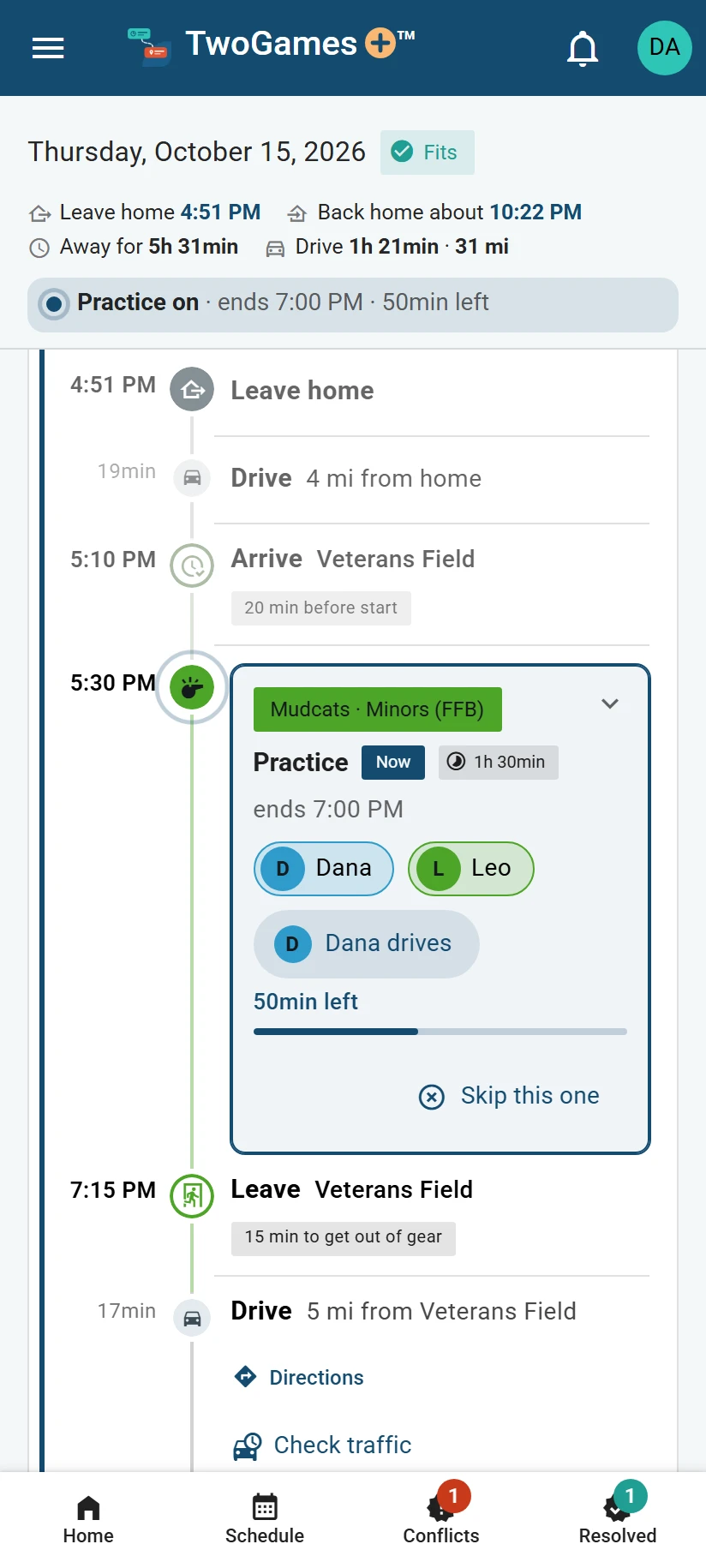
Before you set off, the next step says Next, and how soon. If two cars are out, Now shows only on your own car.
On a day you don't drive, the top shows the first car out. If it leaves from someone else's home, it says whose, as … leaves. A time we can't work out yet says why, like … isn't on the map yet.
Home keeps today for 60 minutes after its last drive or game ends. Until then, if you can change the day, its top says Available for changes until … and how long is left.
After that, Home says Today's run is done. Tap See today to look back at it.
How we work out when to leave
We count back from when you need to be there, not from the start time. That's the start, minus how early you need to be there. In Settings, that's Before a game or Before a practice.
Then we take off the drive, as it usually is at that hour. A drive from someone else's home is rounded up to 5 minutes, so its time to leave may look a little early.
A drive from your Home base (your shared home address) is too, until the Owner (the one person in charge) confirms you live there. On the day, you can also check the traffic before you leave.
Times are estimates
Our times are estimates, so allow extra time. Our terms say:
Never read, tap or type in TwoGames+ while you're driving. Pull over first, or let a passenger do it.
Read more in our terms
A time looks wrong? See Change game length and how early to arrive. Or write to support@twogamesplus.com, and a person will help.
What to do next
- Check the traffic before you leaveSee today's drive with the traffic on the road now, and when to leave because of it.
- Let today's plan follow your phoneTurn this on, and today's plan notices if you're still at home or already on the way.
- Change game length and how early to arriveSet how early each sport needs you there, and how long games, practices and packing up take.
Still stuck?
Write to support@twogamesplus.com and a person will answer.