Add one game or event by hand
Add a single game, practice or other event, like team photos, on a day of its own.
Before you start: add the team first, with someone who plays on it. If the team shows Player needed, tap Choose who plays. Add a team shows how.
Who can do this: an Editor, someone who can change the schedule, or the Owner, the one person in charge. A Viewer, someone who sees the schedule and changes only their own things, can't do this. The app tells them who to ask.
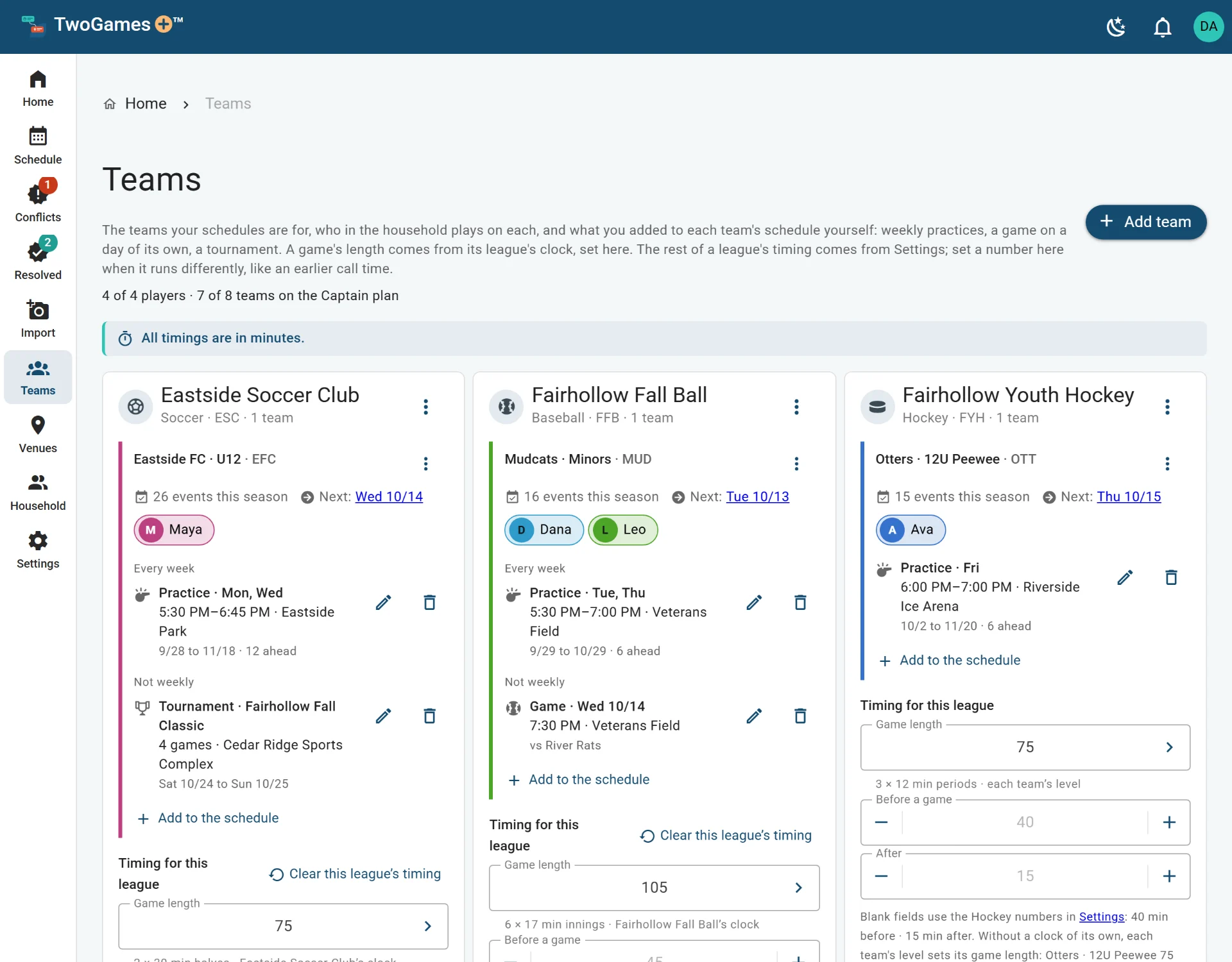
Open the menu (☰) and tap Teams. On a tablet or computer, Teams is on the left.
Under the team, tap Add to the schedule, then One day.
Tap what it is: Game, Practice, Skills or Other. For Other, you can type a name, like Team photos.
Set the Day and the time it Starts. Ends fills in from the team's usual length, so change it if you know better.
Under Where, pick the venue: a rink, field, court or gym. Or pick A new venue.
For a game, you can type the other team under Against (optional).
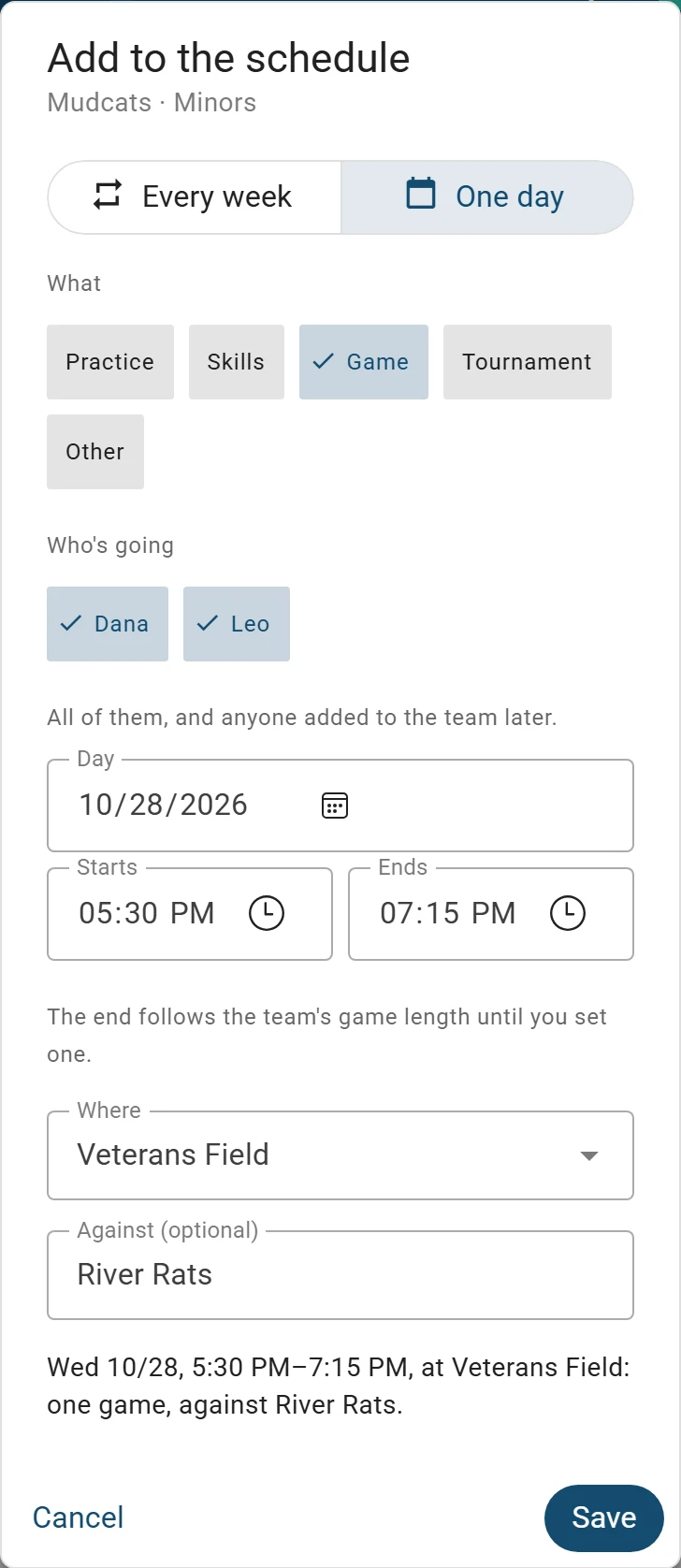
One game: who’s going, the day, the time, where, and who it’s against. Tap Save.
What you'll see
It shows under Not weekly on Teams until its day has passed. It's on your schedule too, and stays there after.
Good to know
- If two or more of you play on the team, you also see Who's going. Everyone starts ticked. Untick anyone who won't go: they stay on the team.
- Adding it here never uses a schedule read, which is one picture or PDF we read for you.
- If the team already has something starting at that time, we say so, and it won't save yet. Pick another time, or change the other one on its day.
- If you import the club's schedule later, we won't offer to remove this on days the page says nothing about.
- To change or remove it, tap the pencil or the trash can beside it on Teams. Removing it never removes a day already played.
Tip: For a weekend of games, add a tournament instead. See Add a tournament before game times are out.
What to do next
- Add a tournament before game times are outHold the tournament days now, so you can see what they clash with, and add the games later.
- Add a weekly practice by handAdd a practice that happens at the same time every week, for the whole season.
- Change, merge or remove a team or practiceRename a team, join two copies of one team, or remove what you no longer need.
Still stuck?
Write to support@twogamesplus.com and a person will answer.