Add a team
Add each team with its league, sport and level, and who in your household plays on it.
Every team is in a league: the league or club it plays in. The league sets the sport. A team also has a level: its age group or division.
Before you start: for a second team, add your home address first.
Who can do this: an Editor, someone who can change the schedule, or the Owner, the one person in charge. A Viewer, someone who sees the schedule and changes only their own things, can't do this. The app tells them who to ask.
Open the menu (☰), then tap Teams.
Tap Add team.
Under League or category, pick your league. For a new one, pick A new league or category, then fill in League or category name and Sport or category.
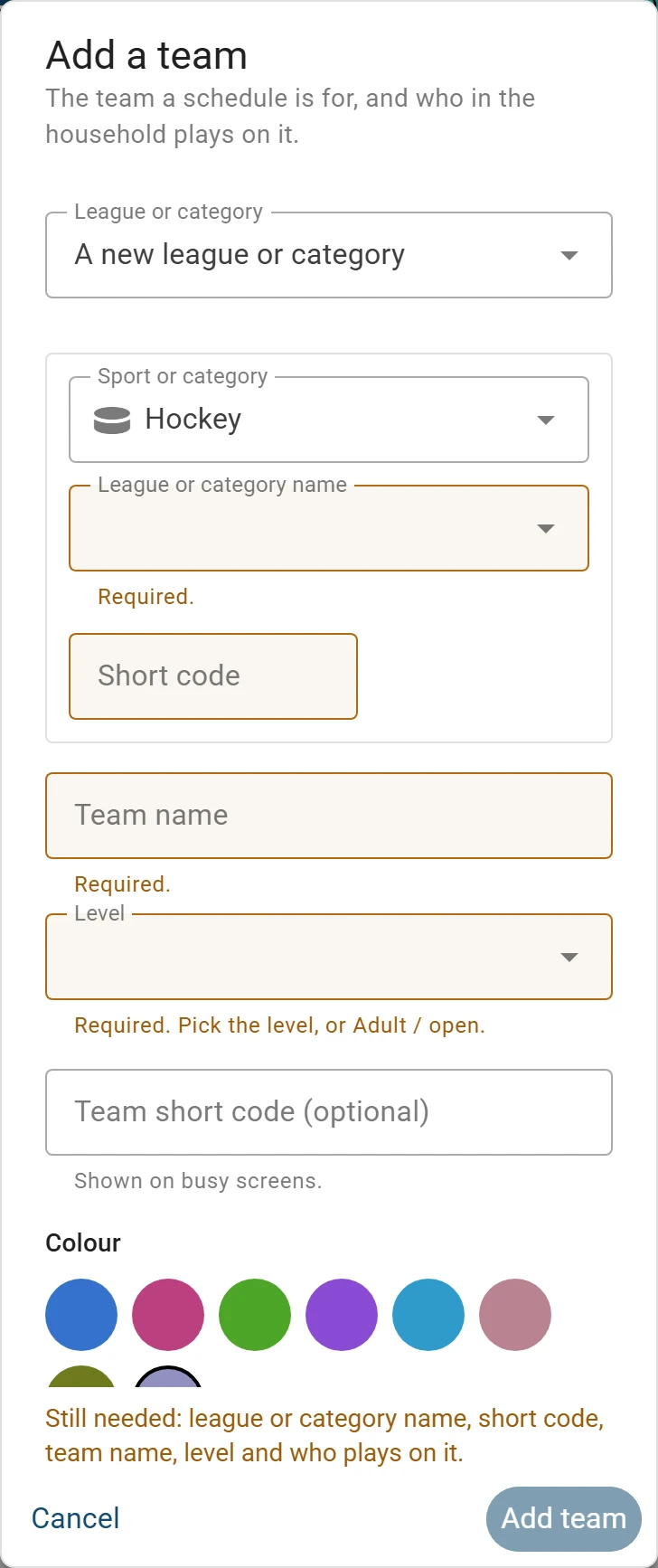
A new league needs a name and a sport. Type the Team name.
Pick or type the Level, like an age group, or Adult / open for a grown-ups' team. If the sport is Other, you can leave it blank.
Under Who plays on it, tap each person on the team.
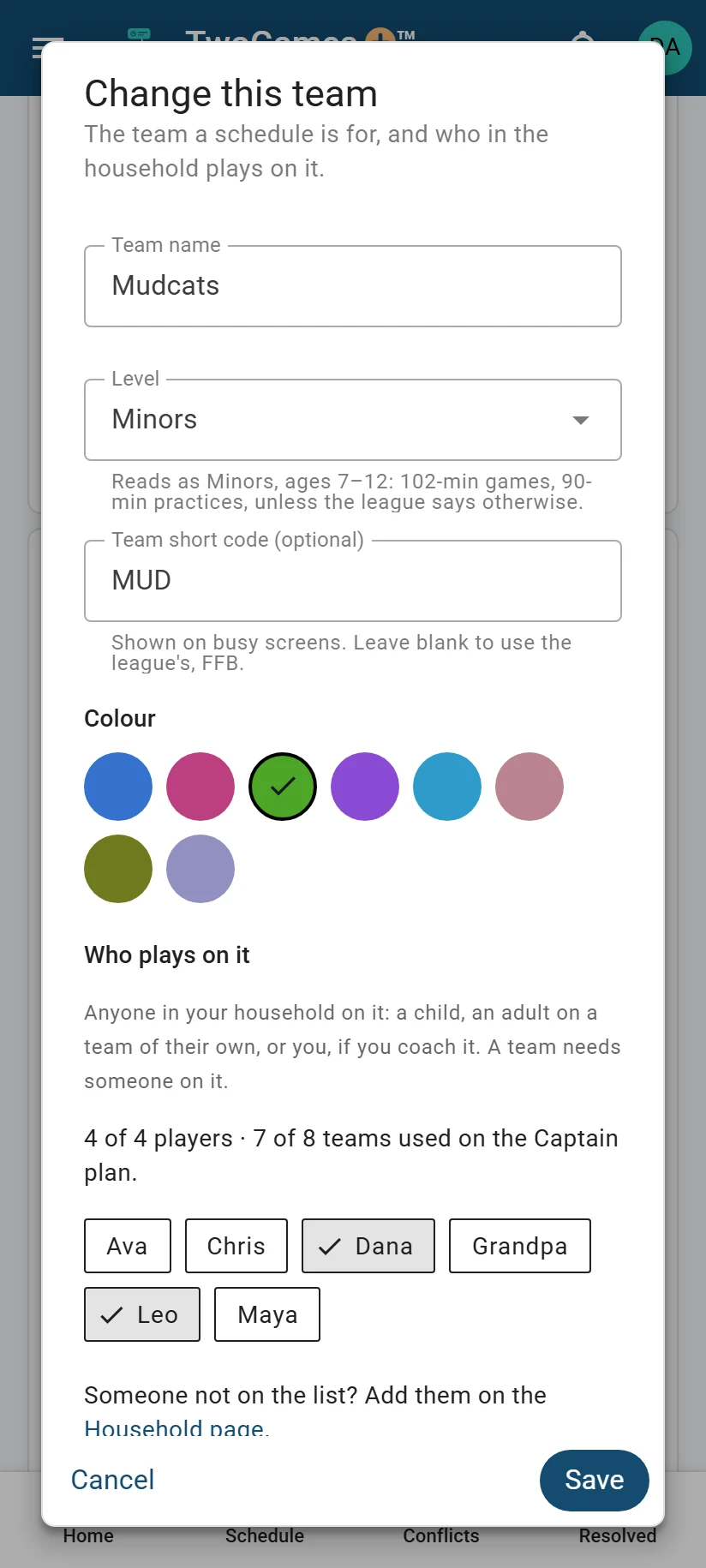
A coach adds the team they coach, with themselves on it. Tap Add team. If it's greyed out, Still needed above it says what is missing.
What you'll see
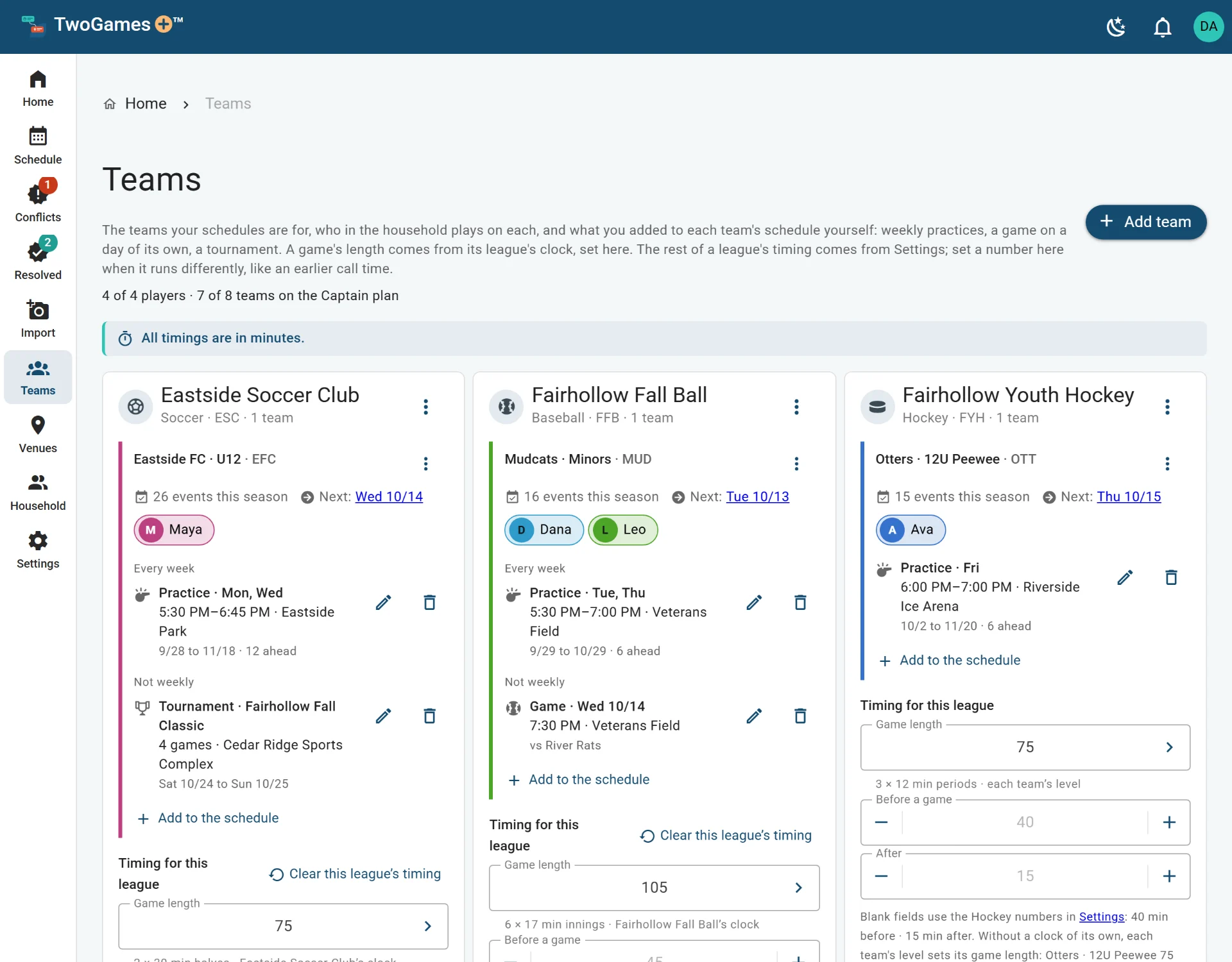
The team shows on Teams, under its league.
If someone isn't on the list
People join your household (everyone who shares your schedule) on the Household page, not in this window. Tap Household page, then Add a player.
Then tap Back to adding …. Your team is as you left it, with them ticked.
What counts toward your plan
Depends on your plan How many teams you can have depends on your plan. Every team counts. The window shows how many you've used.
Depends on your plan Each player counts too: anyone on one of your teams. If your plan is full, the window says so before you save.
The terms say who counts: A player is anyone on one of your teams, adult or child, including a coach on the team they coach. People who are on no team, such as someone who only drives, never count.
Read more in our terms
If you coach
Add the team you coach. Then tap your own name under Who plays on it.
The terms say: A coach can add the team they coach, to plan their own driving, but not the team's players, unless they drive them.
Read more in our terms
Tip: Adding a schedule from a picture can make the team for you. See Add a schedule from a picture.
What to do next
Still stuck?
Write to support@twogamesplus.com and a person will answer.