Delete your household, or everything
The Owner can delete the household at any time, and you can email us to delete everything.
On this page
Your household is everyone who shares your schedule.
In our privacy notice's words: We keep what the app needs to check your schedule: your household, the home addresses its drives start from, the names of the people in it, and their teams, games and practices.
Read more in our privacy notice
Before you start: only the Owner, the one person in charge, can delete the household. It goes at once, for everyone in it, and you can't undo it.
Open the menu (☰), then tap Household. On a tablet or computer, it's on the left.
Scroll to the Danger Zone at the bottom. Beside Delete this household, tap Delete household.
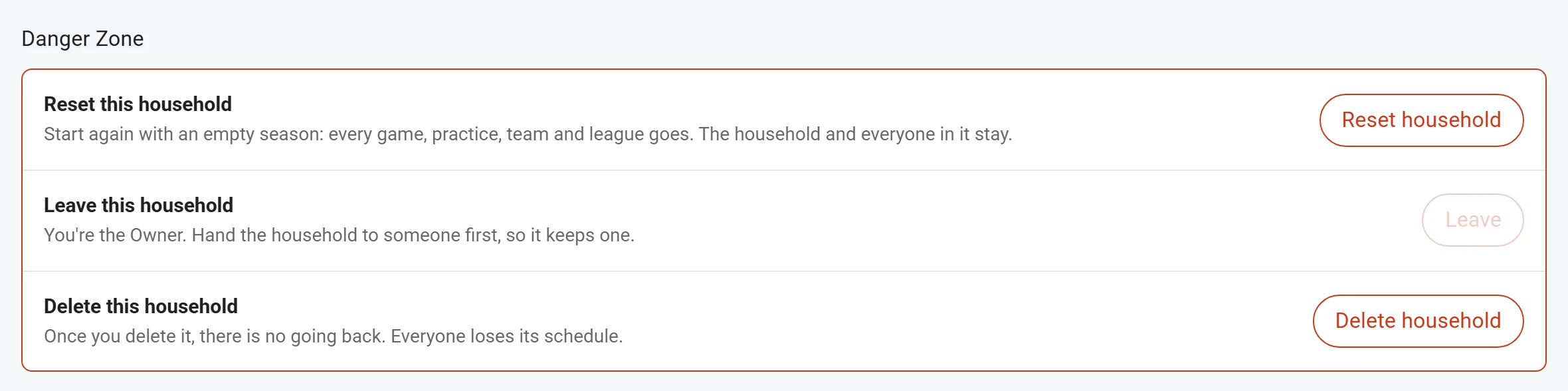
The Owner can reset or delete the household at any time. Type the household's name in the box. The name shows right above the box.
The window lists everything that goes.
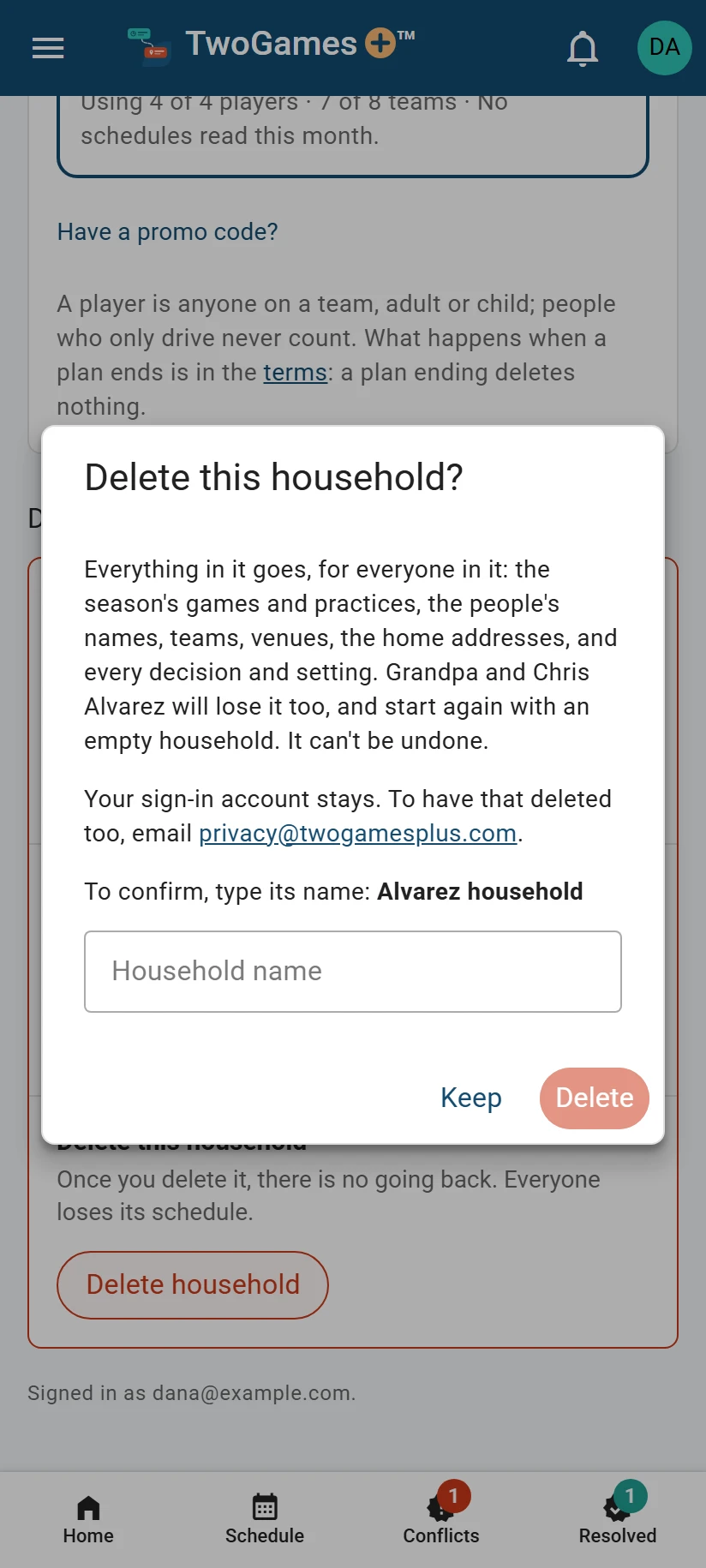
Type its name to be sure. Tap Delete. To stop, tap Keep instead.
What you'll see
You're signed out. It's deleted at once, for everyone in it: its schedule, home addresses, people's names, teams, venues and decisions, any invitations, and every member's name and email address.
Read more in our privacy notice
A paid plan is cancelled first. The window says so, and our terms say what that means for payments.
Everyone else who signs in to the household gets an email saying it's gone. Everyone keeps their sign-in account. The next time any of you signs in, you start with a new, empty household.
Keep the household, and start the season again
The Owner can empty the household instead of deleting it. In the Danger Zone, beside Reset this household, tap Reset household. Type the household's name, then tap Reset.
Every game, practice and team goes, and so do the clubs they play in. So do the places you drive to, and the people you added who don't sign in. The household's settings, like how early to arrive, go back to the usual numbers.
Everyone who signs in stays, and so do the household's name, address and plan. Pictures we've already read for you still count toward your plan.
Delete everything, your account too
Email privacy@twogamesplus.com from the address you sign in with.
In our privacy notice's words: Within 30 days we'll delete your household, with its schedule, home addresses, people's names, teams, venues and decisions, and your sign-in account, and tell you when it's done. If you share the household, say whether you want only yourself removed or the whole household deleted. Deleting it removes it for everyone in it, so that needs its Owner to ask.
Read more in our privacy notice
You can ask for a copy of what we hold about your household the same way.
Read more in our privacy notice
Questions about your data? Write to privacy@twogamesplus.com. For help with the app, a plan or a payment, write to support@twogamesplus.com.
Only want yourself out?
Share the household, but want only your own details gone? Leave it first, in the Danger Zone: the address you drive from is deleted there. Then delete the empty household you get.
While others share it, the Owner gives the household to one of them before leaving. Give the household a new Owner shows how.
What to do next
Still stuck?
Write to support@twogamesplus.com and a person will answer.