Add your kids and other players
Add each player who doesn't sign in, like your kids; a first name or a nickname is enough.
Your household is everyone who shares your schedule, and the people it's for. Add each player: anyone on one of your teams.
Someone you add here is an add-on: someone you add who doesn't sign in. An add-on takes part in games and practices, and never drives.
Who can do this: an Editor, someone who can change the schedule, or the Owner, the one person in charge. A Viewer, someone who sees the schedule and changes only their own things, can't add anyone.
Open the menu (☰), then tap Household.
Under Household Members, tap Add a player.
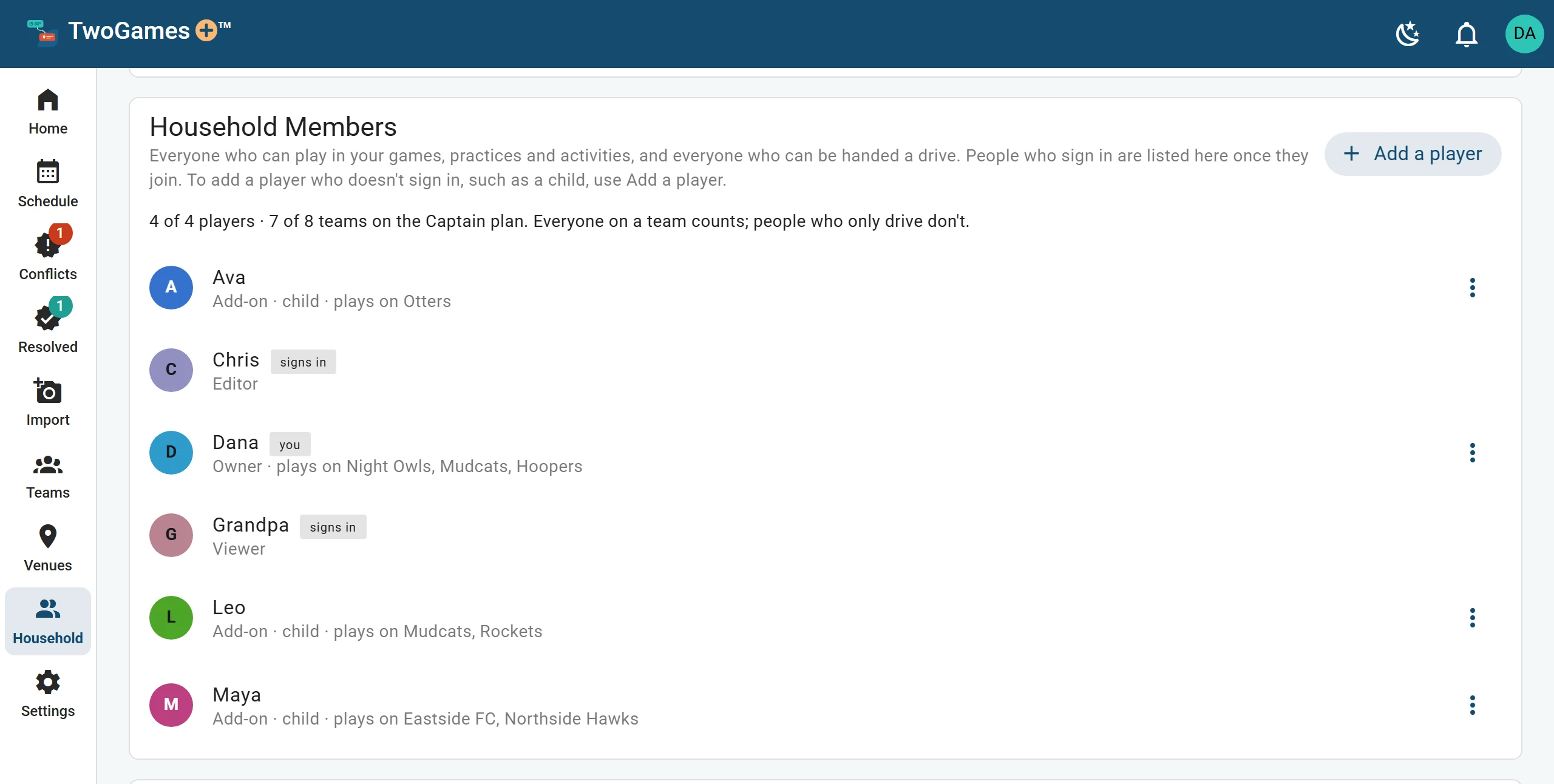
Everyone the app plans for: the people who sign in, and the players who don’t. Type a Name. A first name or a nickname is enough.
For a grown-up who plays, like on an adult team, turn on Adult. Leave it off for a child.
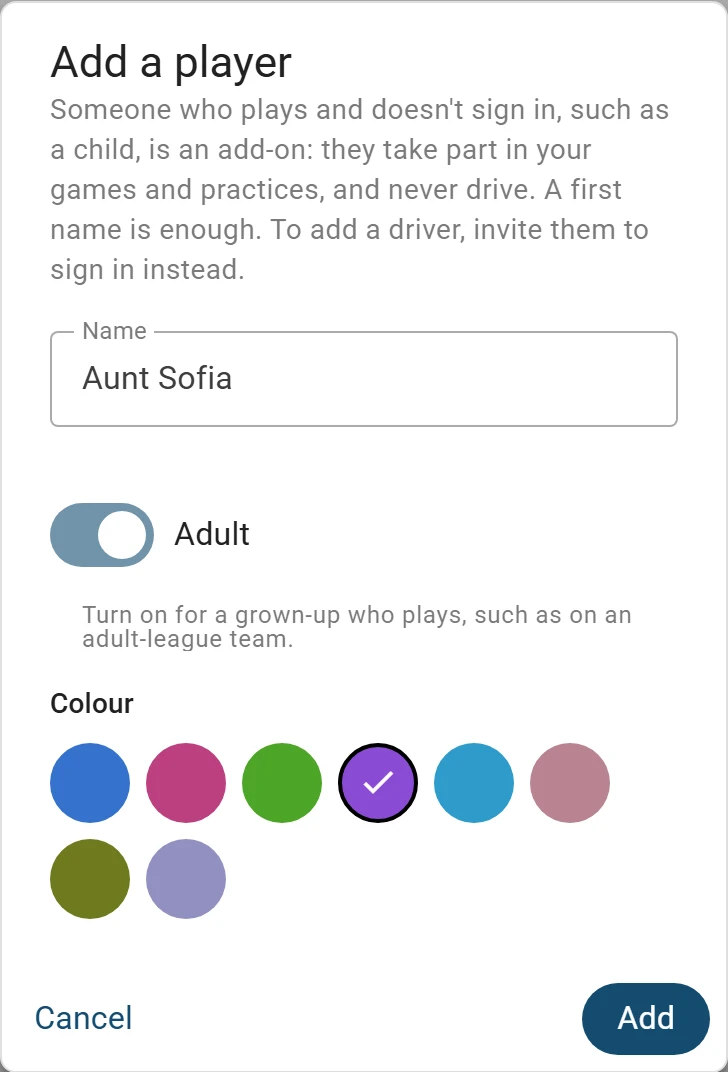
Turn on Adult for a grown-up who plays, not one who drives. Pick a Colour if you like. One is already picked.
Tap Add.
What you'll see
They're on the list, marked Add-on · child, or Add-on · doesn't sign in for an adult. Anyone who signs in is there already, marked you or signs in.
An Editor or the Owner can change an add-on: tap the three dots (⋮) beside their name. Then tap Change. Remove from the household is there too.
Someone who signs in changes only their own name and colour, from the dots on their own row. That goes for every role.
Adding someone who drives
A driver is the adult who drives, and signs in to your household. So to add a driver, invite them. Invite your partner or another driver shows how.
Who counts toward your plan
Depends on your plan Someone counts as a player only once they're on a team. How many players you can have depends on your plan.
Someone who only drives, and plays on no team, never counts as a player. They count toward the people who sign in.
Who you can add
Add only people you're allowed to. The terms say who:
Add only people you're allowed to: yourself, your own children, children whose parent or guardian has said you may, to plan driving them, and adults who agree to be on your schedule.
Read more in our terms
The privacy notice says what we keep about a child.
Tip: A grandparent or a sitter who drives can take a game for you, once they sign in. See Let someone else drive a game.
What to do next
- Add a teamAdd each team with its league, sport and level, and who in your household plays on it.
- Invite your partner or another driverShare one schedule, so everyone you invite sees the same season on their own phone.
- Let someone else drive a gameHand over a game or practice to another adult, and we check each car on its own.
Still stuck?
Write to support@twogamesplus.com and a person will answer.