See your season as a list or calendar
Switch between a list of days and a calendar by month, week or three days.
Tap Schedule at the bottom. On a tablet or computer, Schedule is on the left.
At the top, tap List or Calendar.
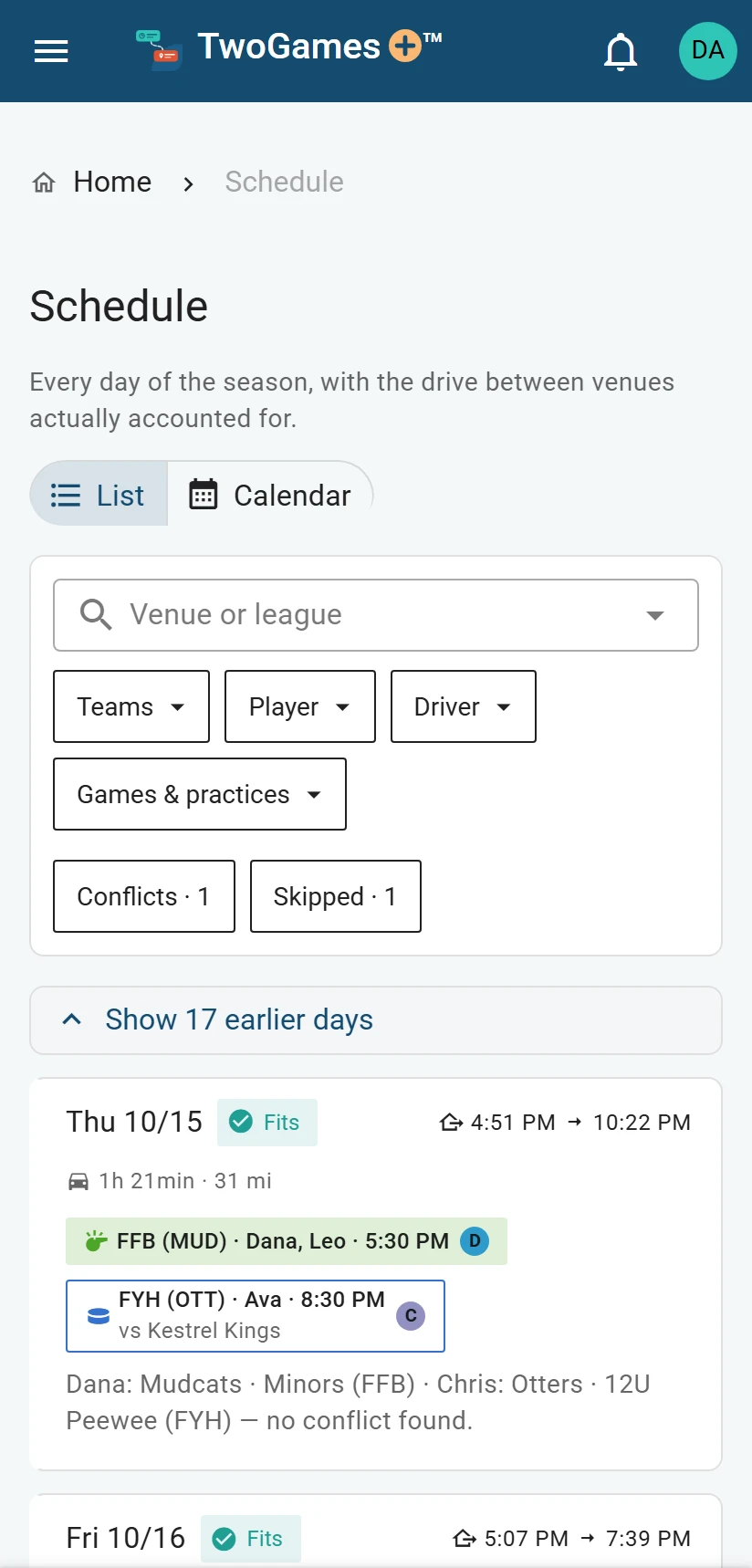
The Schedule as a list: one card for each day. In the calendar, choose Month, Week or 3 days. On a phone, they're three small calendar icons, in that order.
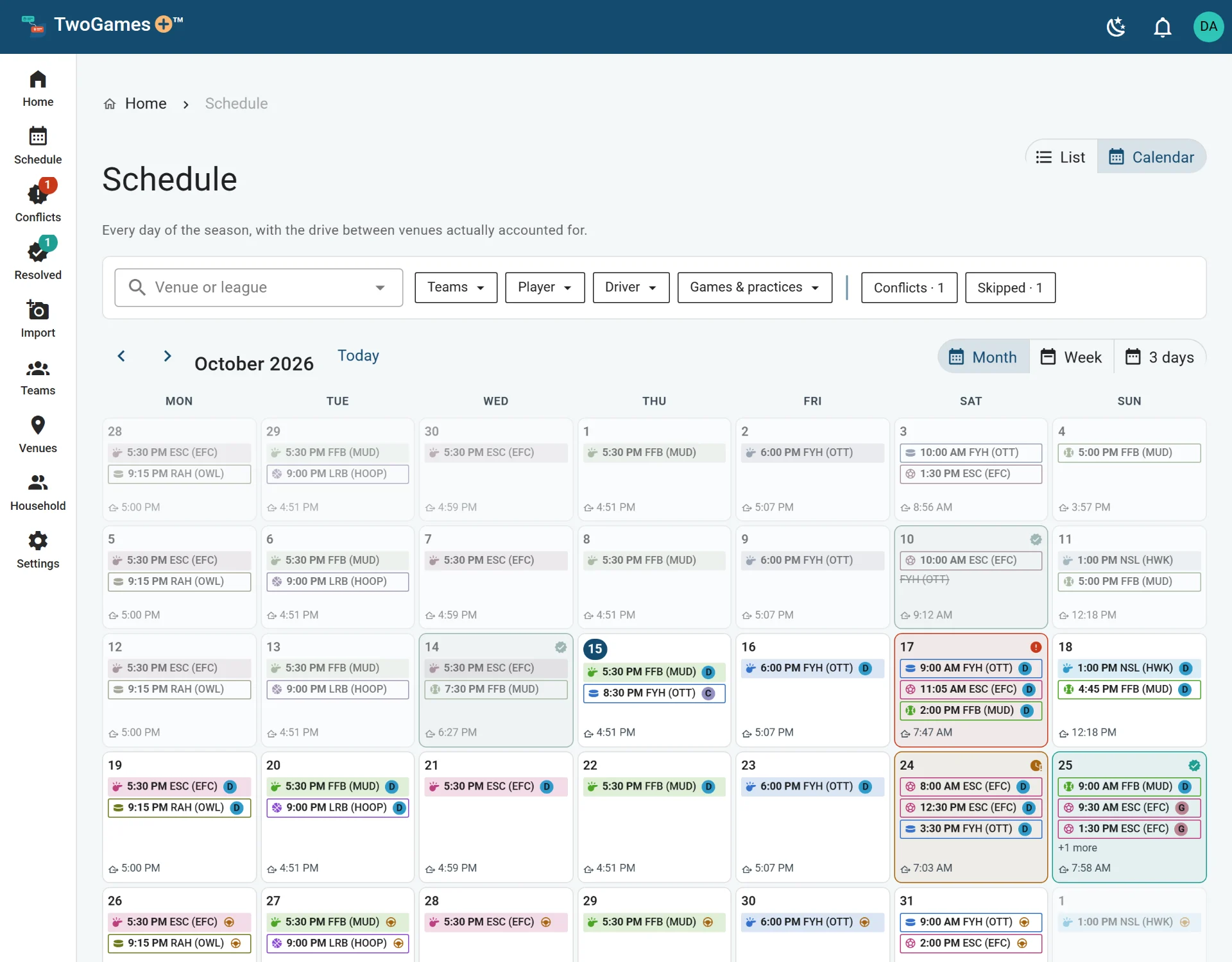
The month on a computer. Tap the arrows to move through the season. On a phone, you can also swipe sideways.
Tap Today to come back to today.
Tap a day to open it. In a month on a phone, tap a day to see its card, then tap the card.
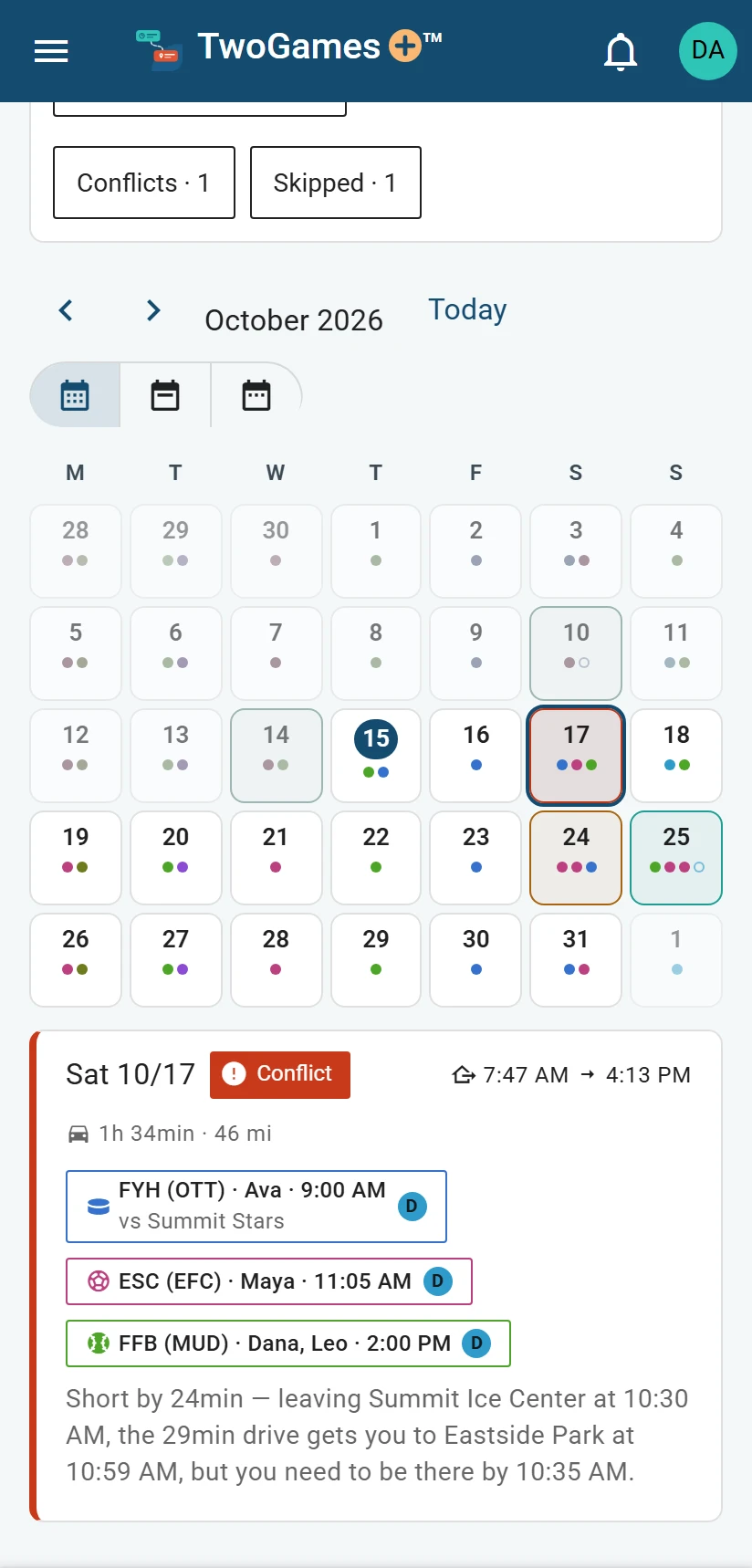
In a month, tap a day to see its card.
What you'll see
The list shows the days still ahead. To see days already played, tap Show … earlier days at the top of the list. The calendar opens at your next day with a game or practice.
Reading the week
In Week and 3 days, each block starts when you need to be there. It ends when you can leave. The game or practice is the band inside it.
Drives run in a thin strip down the side of each day. A key under the grid says what each shade means.
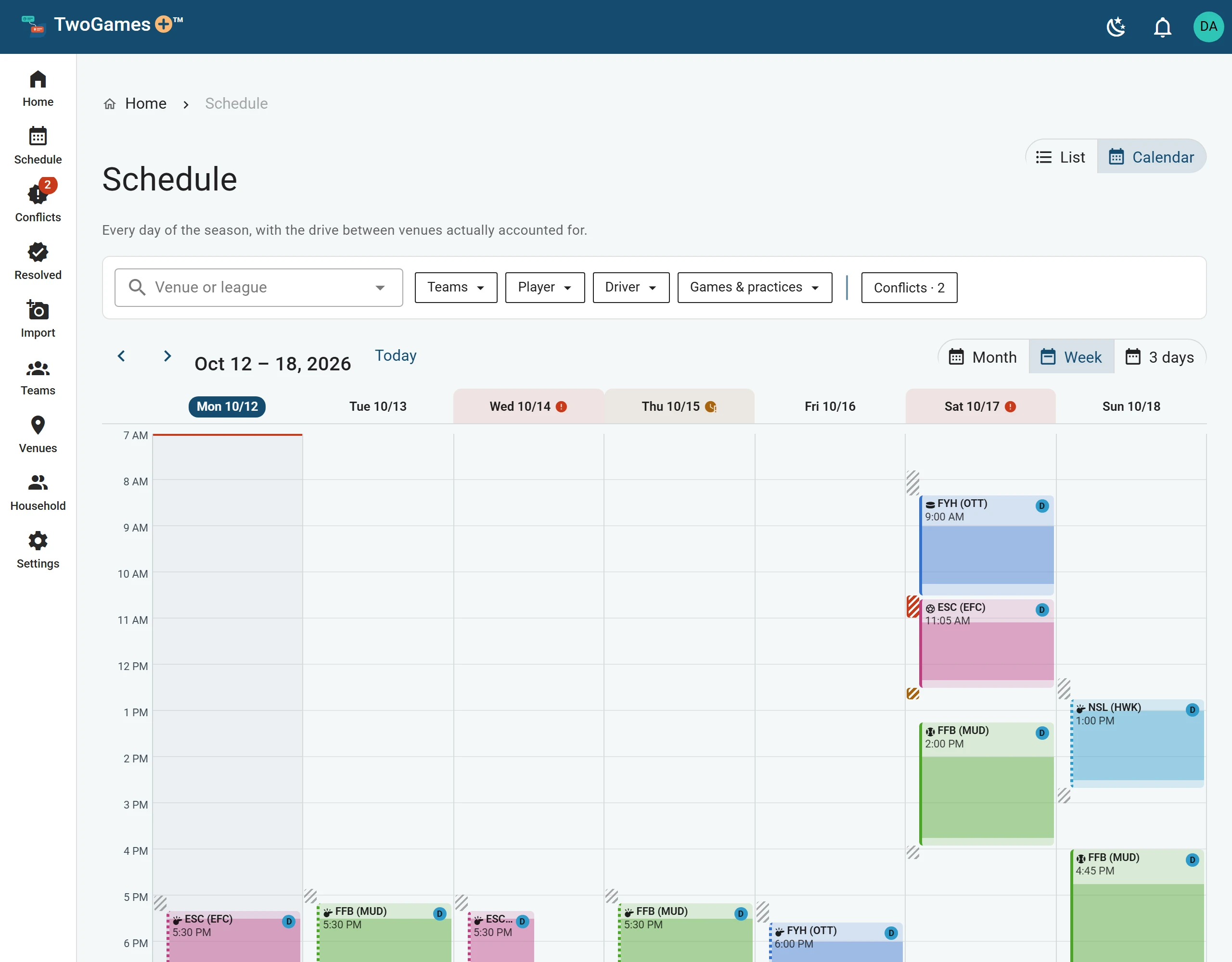
The week starts on Monday, so Saturday and Sunday sit side by side.
Tip: Schedule always opens as a list. Tap Calendar any time to switch.
What to do next
- Find one player's games, or your own drivesUse the filters on the Schedule to see only the days you care about.
- See which days don't workFind every coming day with a Conflict, and the ones that are Tight, in one place.
- What Fits, Tight and Conflict meanEvery day gets one word that says whether one driver can make it all on time.
Still stuck?
Write to support@twogamesplus.com and a person will answer.